
Traces
Traces require Solo or higher.
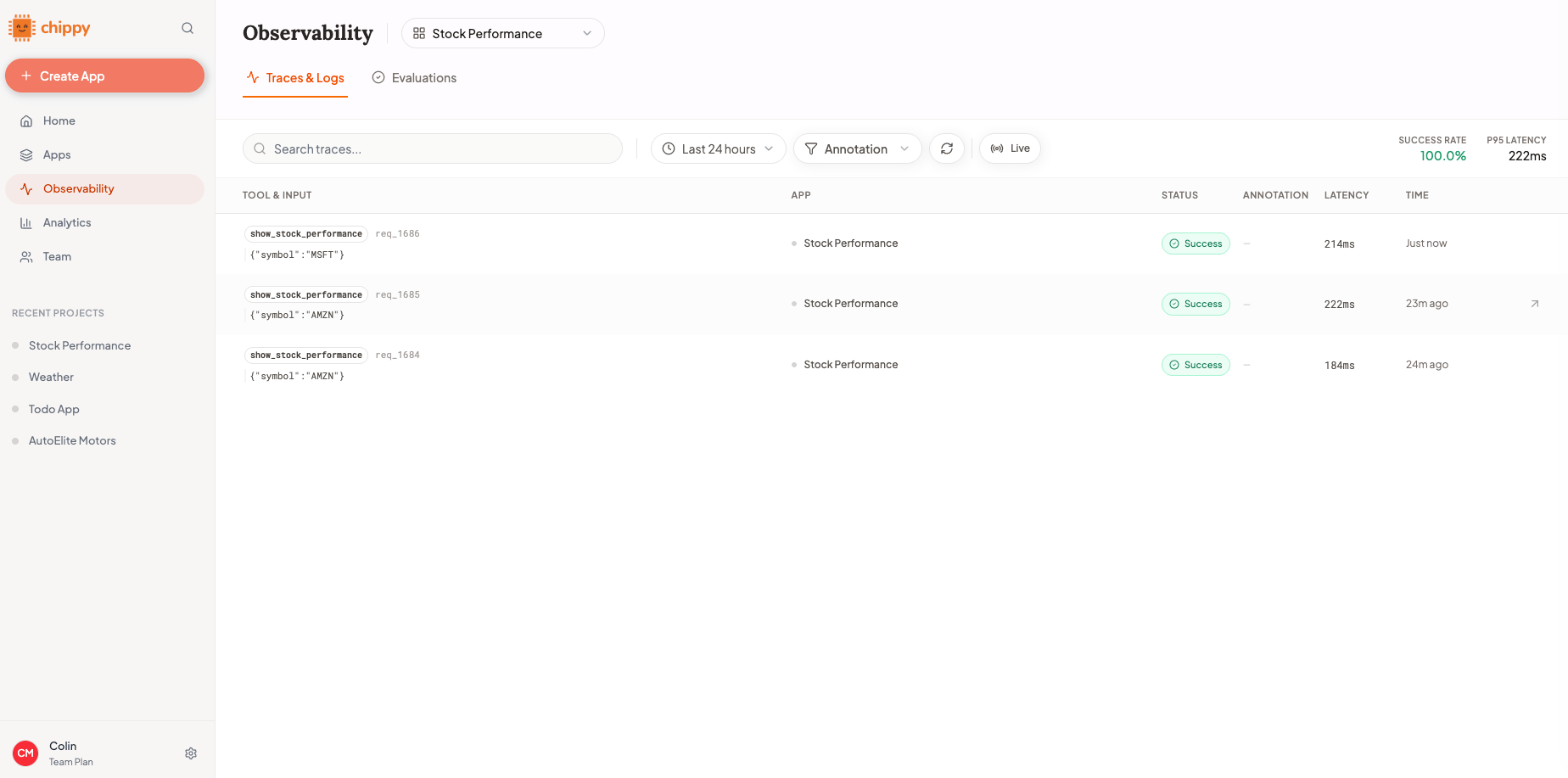
The Traces dashboard showing recent tool invocations
What a Trace Contains
Each trace captures:Investigating a Failed Trace
When a user reports a problem (or you notice something off), follow these steps to find the root cause.1
Open the Traces dashboard
Go to Traces in your Chippy dashboard. You’ll see a reverse-chronological list of all tool invocations across your apps.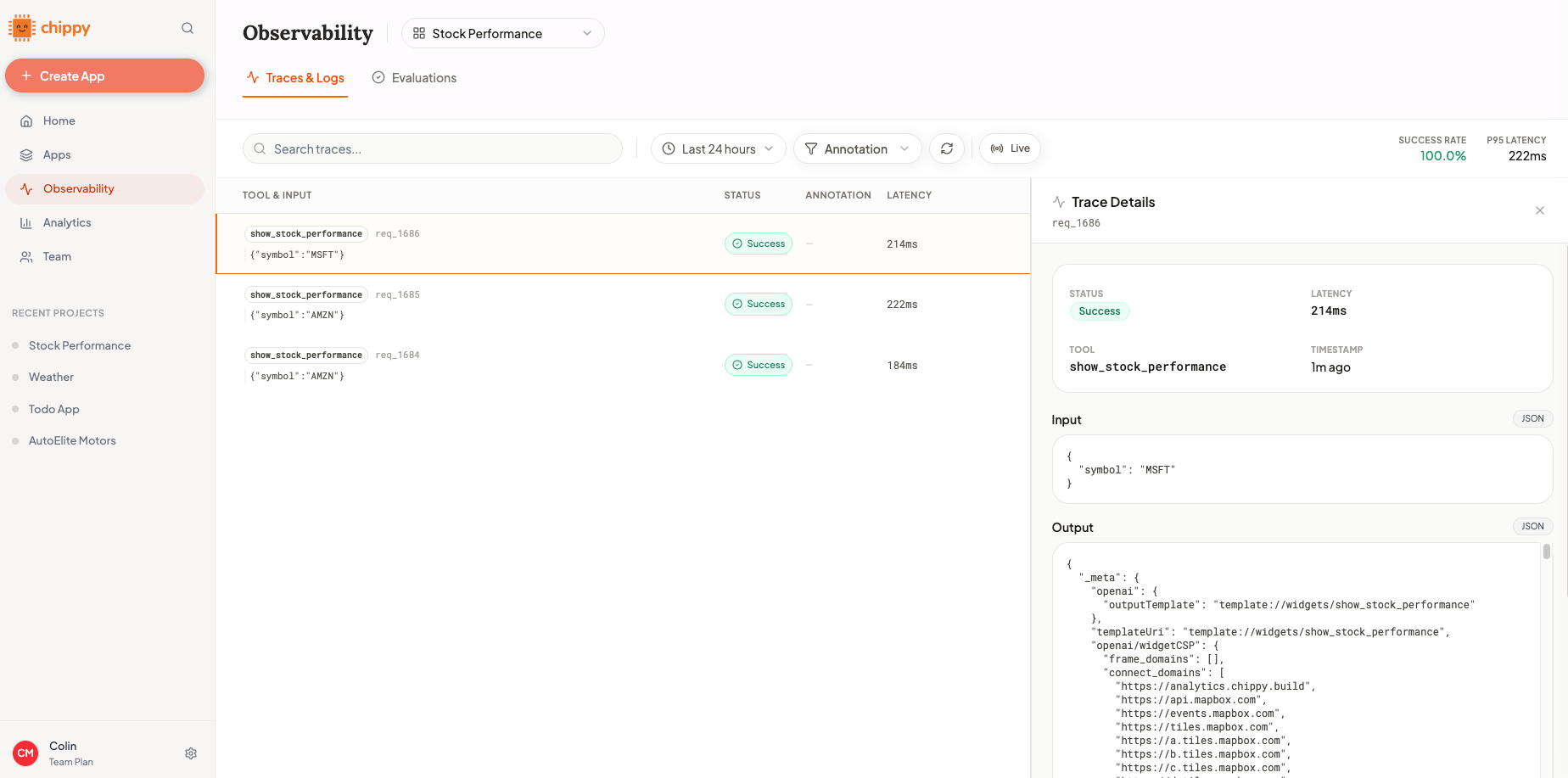
Opening the Traces dashboard
2
Filter by app and time range
Use the filters at the top of the dashboard to narrow down to the relevant app and the time window when the issue occurred.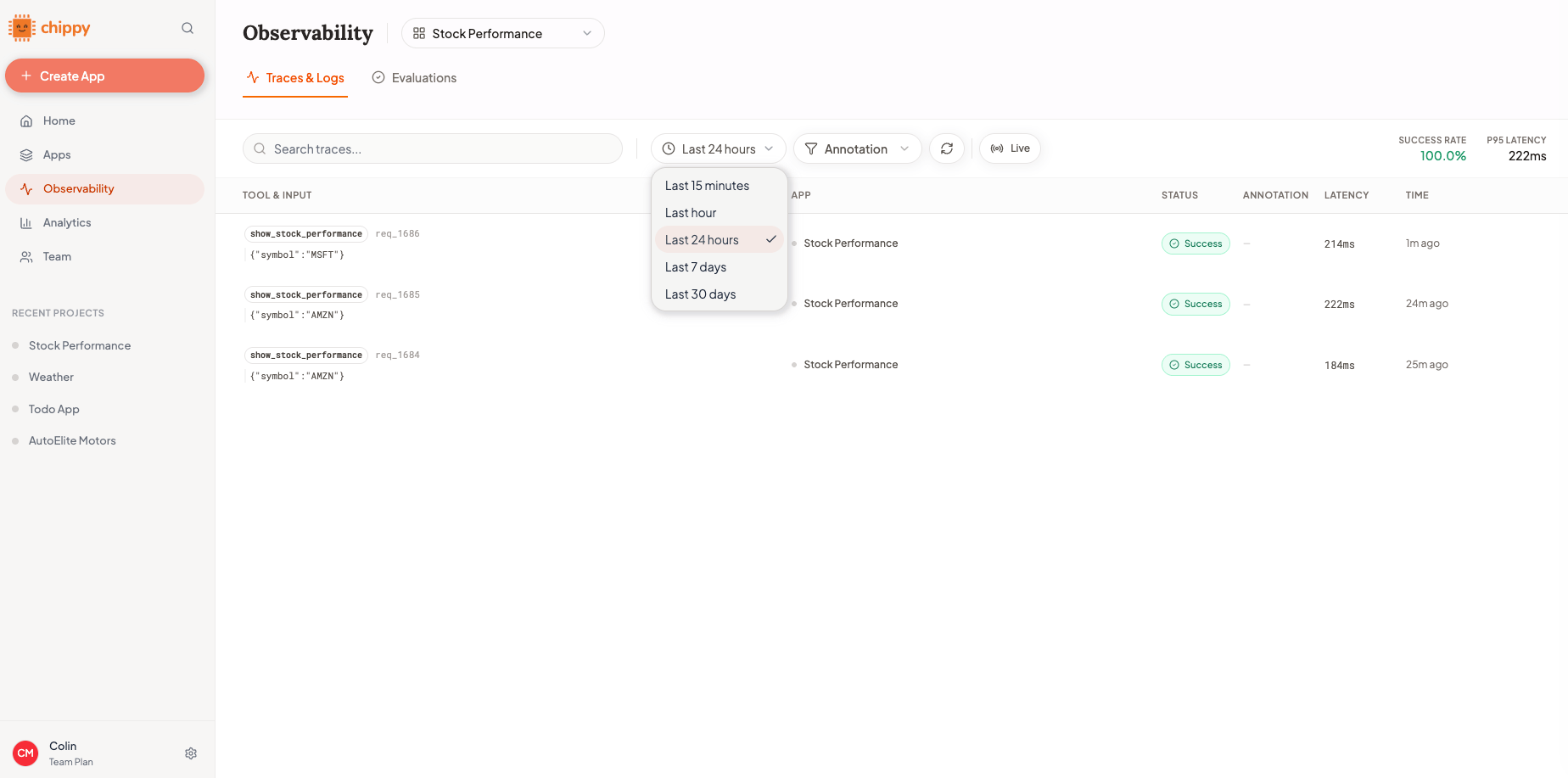
Filtering traces by app and time range
3
Look at failed traces first
Sort or filter by status to surface failures. Click on a failed trace to open its detail view.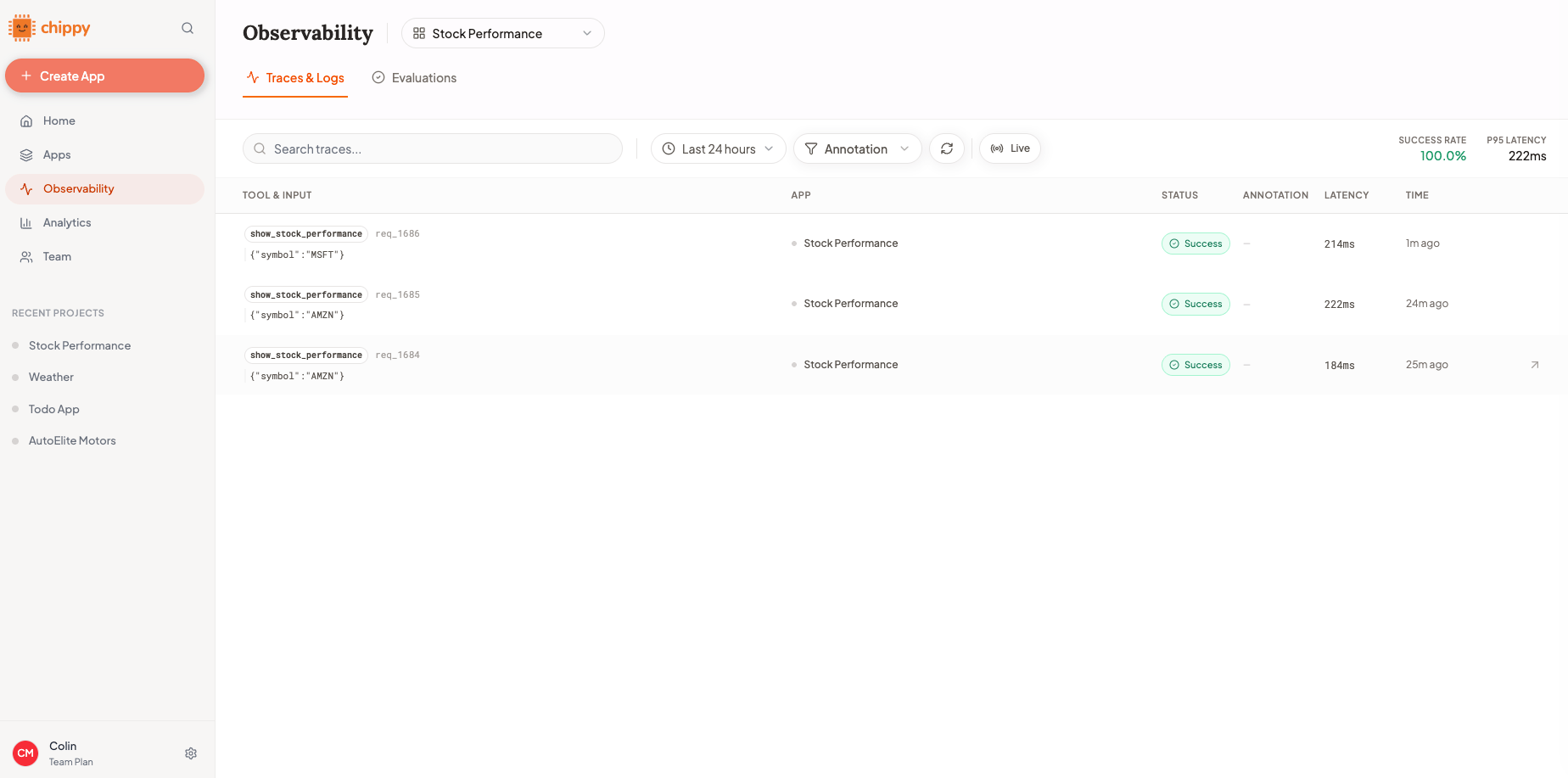
A failed trace expanded to show details
4
Compare input, tool selected, and output
In the trace detail, check three things:
- Was the right tool called? If ChatGPT picked the wrong tool, the issue is in your tool descriptions, not your tool logic.
- Were the inputs correct? If the parameters look wrong, the issue is in how ChatGPT extracted values from the user’s message.
- Is the output what you expected? If the tool ran but returned bad data, the issue is in your tool’s logic or the underlying API.
5
Fix the issue and retest
Go back to the builder and make the fix:
- Wrong tool selected? Update tool descriptions to be more distinct.
- Bad parameters? Adjust parameter definitions or add validation.
- Bad output? Fix the tool logic or check the API integration.
Adding Annotations
You can annotate traces to track quality patterns over time. Annotations help you categorize invocations and build a picture of how well your app is performing.Thumbs Up / Down
Quick quality signal. Mark a trace as good or bad with a single click.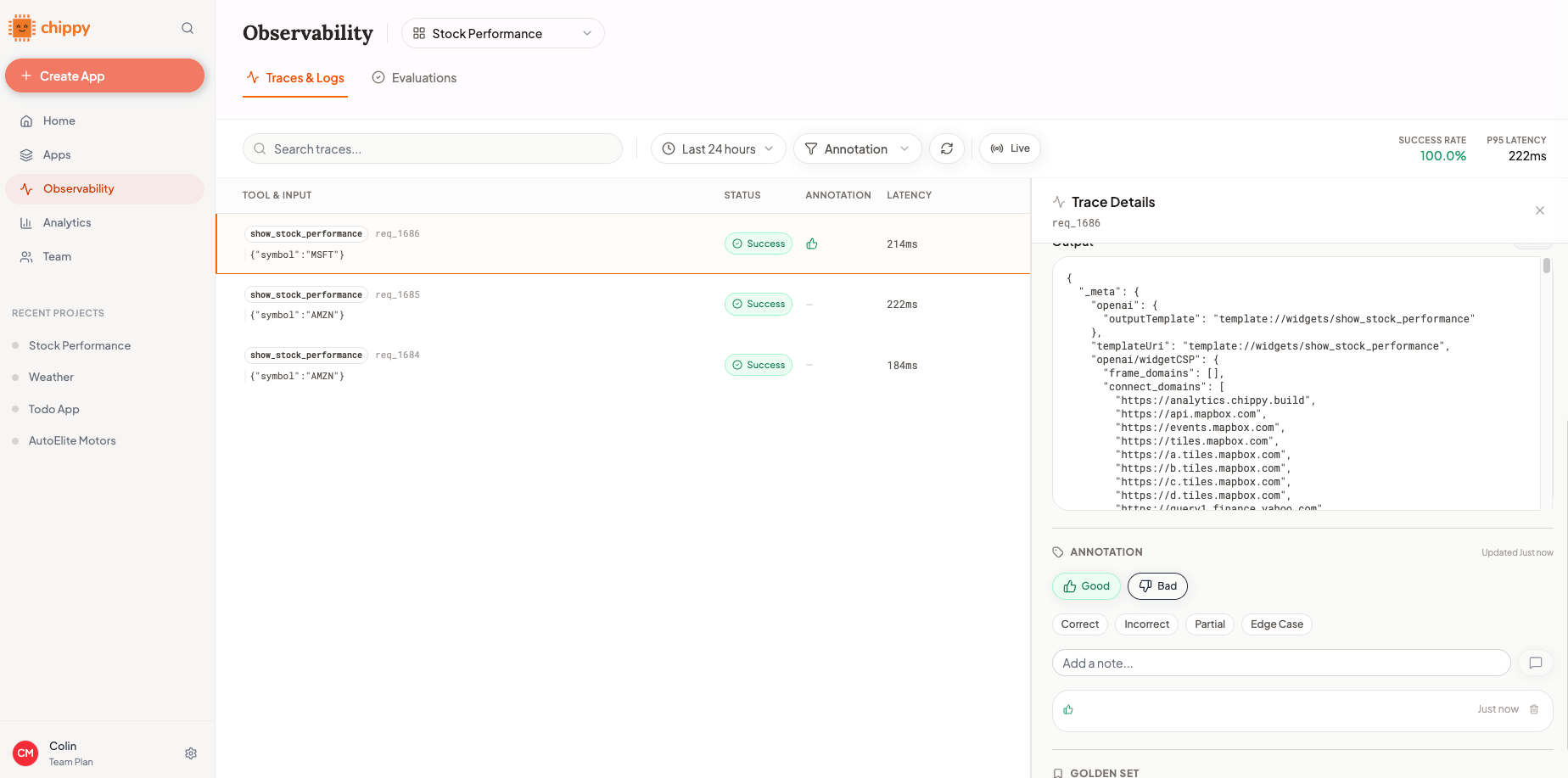
Thumbs up/down annotation on a trace
Labels
Apply structured labels to categorize traces. Built-in labels include:Tags
Add custom tags for your own organization. Tags are freeform text. Use them however makes sense for your workflow. Examples:billing-flow, v2-regression, reported-by-user, needs-eval-case
Turning Traces into Eval Cases
When you find a trace that represents an important pattern (a tricky edge case, a common failure, or a core user flow), save it as an evaluation case.1
Open the trace detail
Click on the trace you want to save.
2
Click 'Add to Golden Set'
In the trace detail view, click the Add to Golden Set button. The trace’s input, expected tool, and output are pre-filled as a new evaluation case.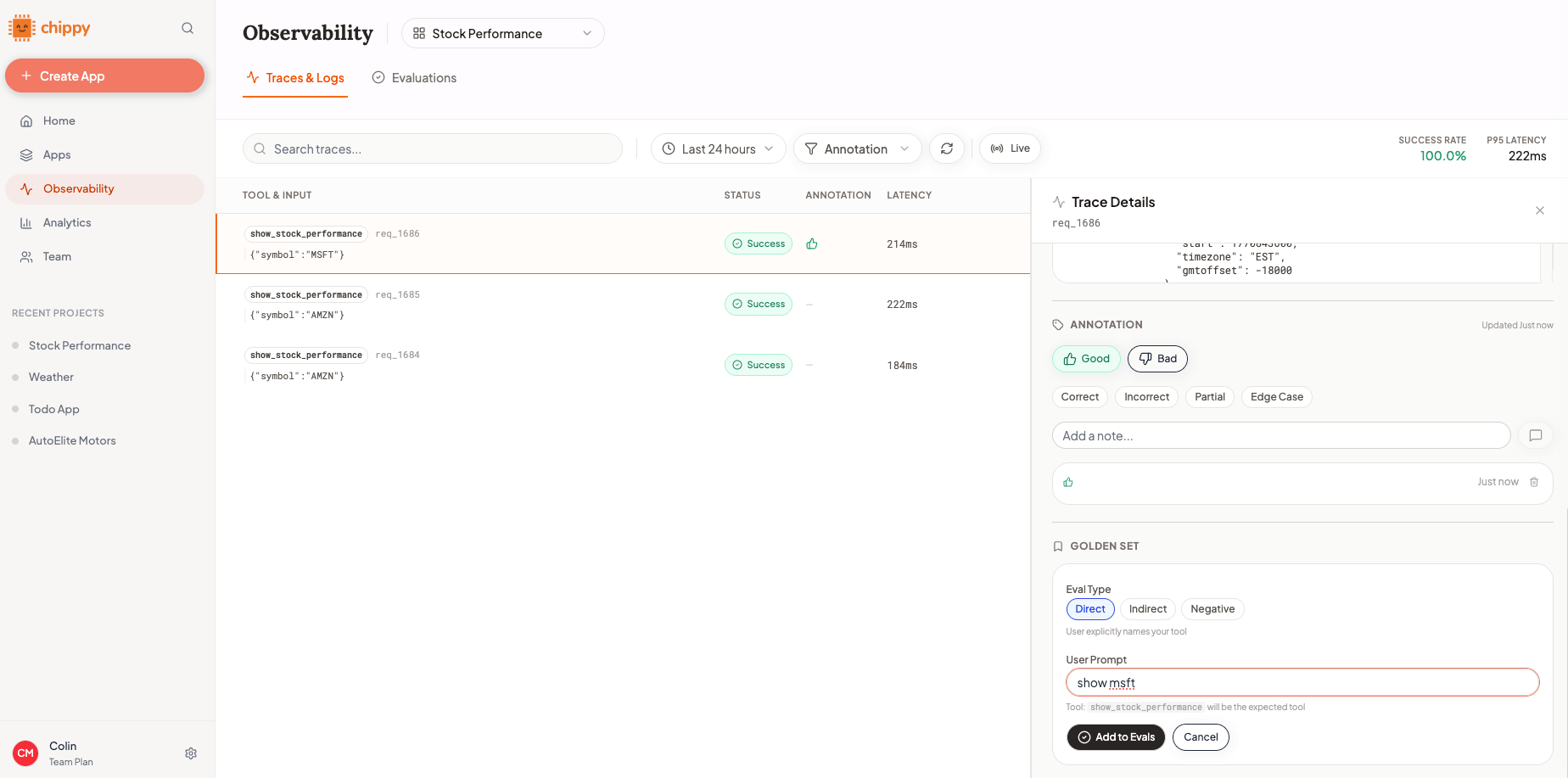
Adding a trace to the golden set
3
Add tags and review expected output
Tag the eval case (e.g.,
core-flow, edge-case, negative) and verify the expected output is correct. Adjust if needed.4
Save
The case is now part of your evaluation suite. You can run it anytime to check for regressions.
Troubleshooting
What’s Next
Evaluations
Turn trace patterns into reusable test cases.
Preview Testing
Test your app and generate traces to analyze.