
UI Tools
UI tools render React widgets inside ChatGPT when invoked. Instead of returning plain text, a UI tool displays an interactive visual (a dashboard, a form, a table, a chart) directly in the conversation.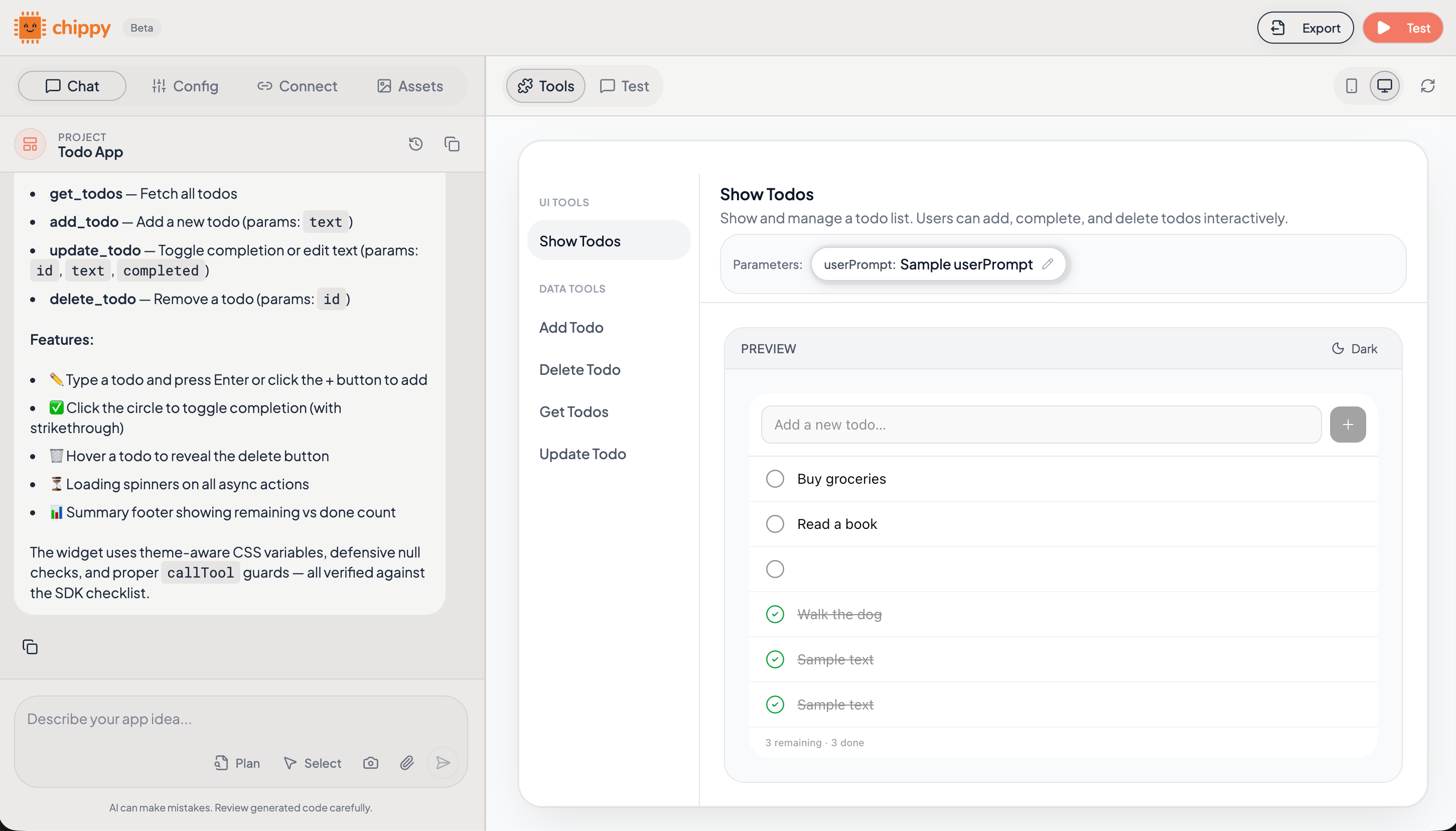
A UI tool rendering a dashboard widget inside ChatGPT
When to Use a UI Tool
Use a UI tool when:- The user needs to see structured data (tables, lists, cards)
- The output involves interactive elements (buttons, filters, forms)
- A visual layout communicates better than plain text
- You want to show charts, maps, or media
Display Modes
Every UI tool has a display mode that controls how the widget appears in ChatGPT. Choose the right mode for what you are building.Inline
The widget appears directly in the conversation flow, sized to fit alongside chat messages. Best for: quick confirmations, short lists, status cards, compact summaries.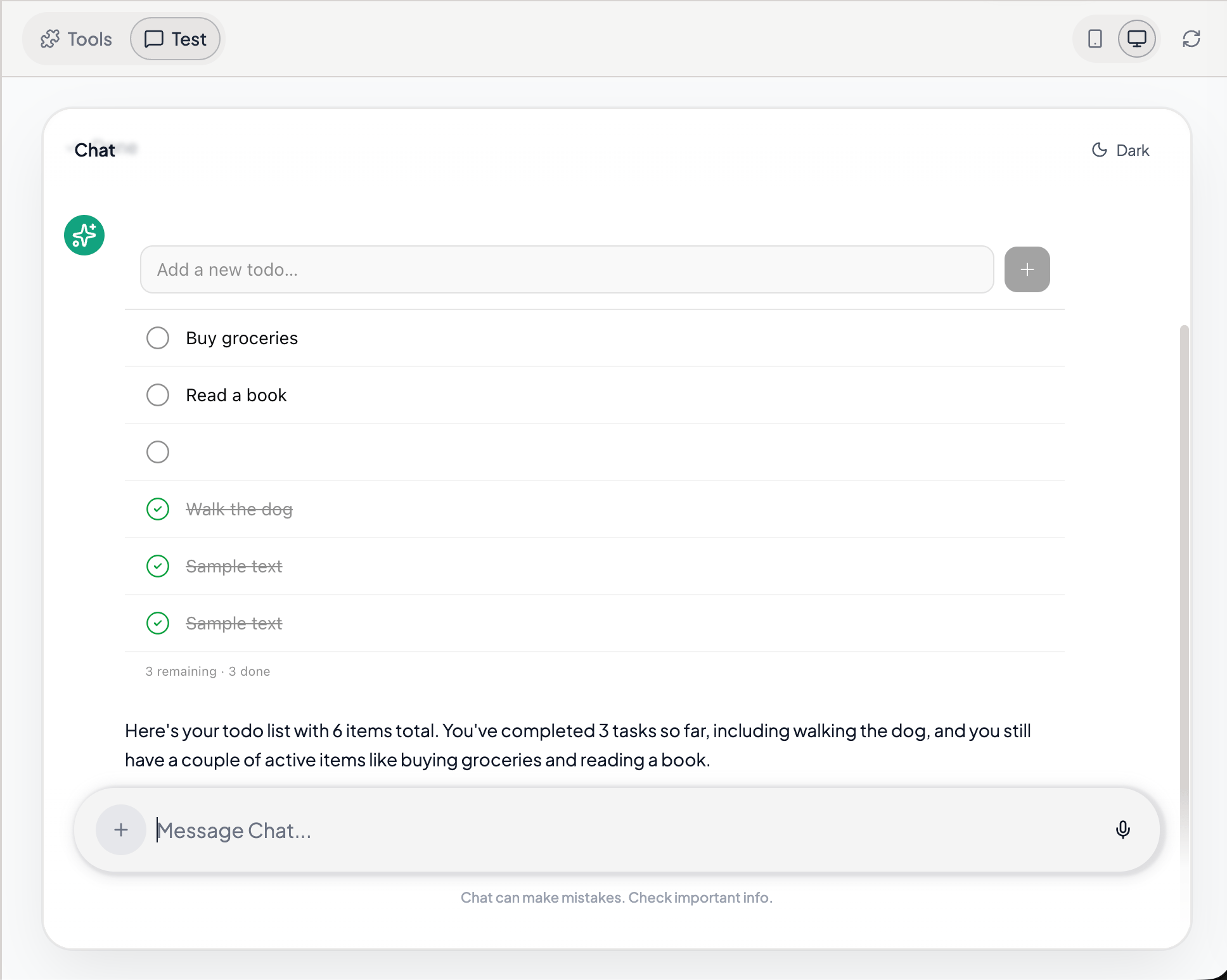
An inline widget showing a confirmation card in the conversation
Fullscreen
The widget takes over the view, giving your app maximum space. Best for: dashboards, complex forms, data tables, maps, multi-panel layouts.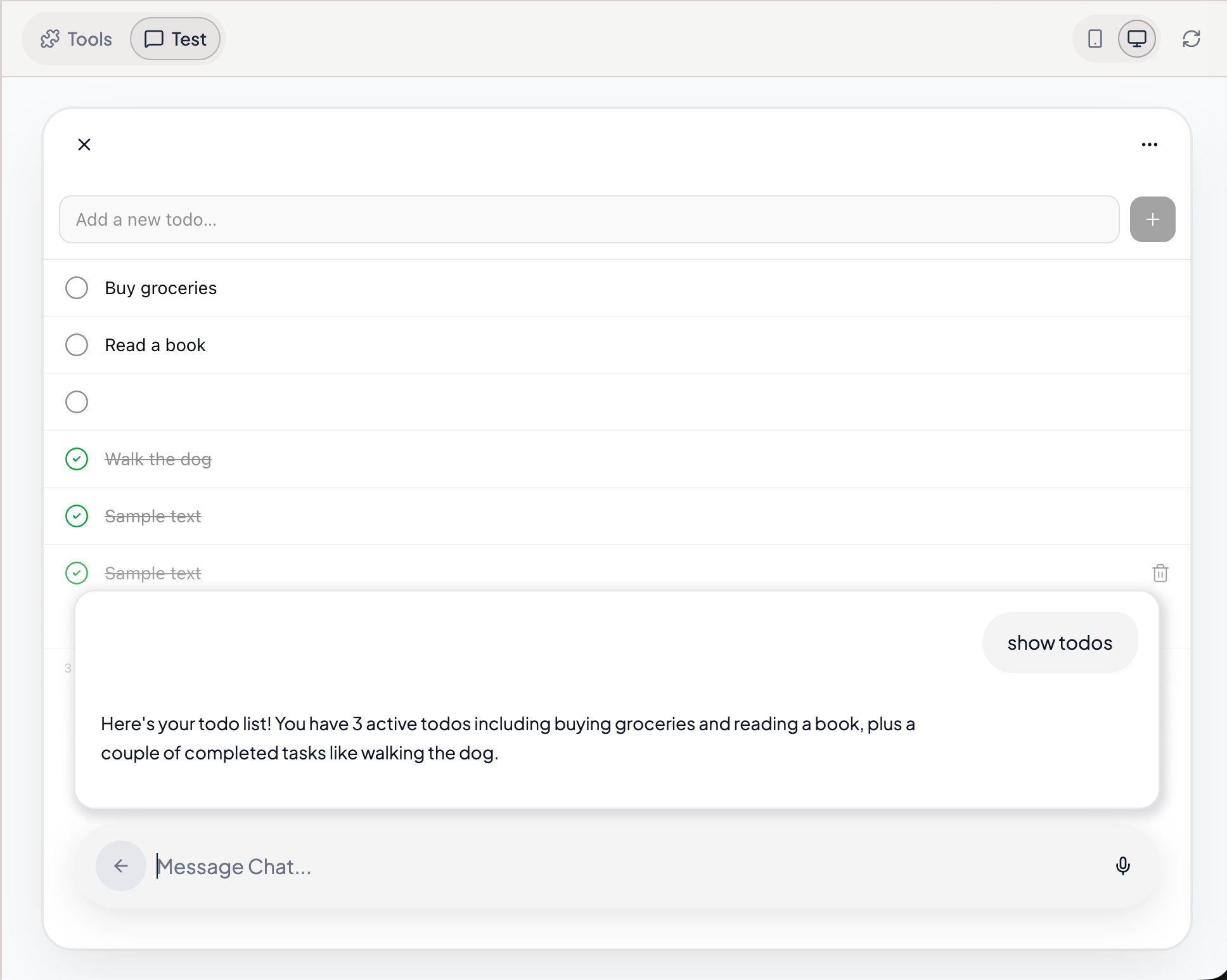
A fullscreen widget showing a data table with filters
PiP (Picture-in-Picture)
The widget appears as a floating, persistent window that stays visible while the user continues chatting. Best for: media players, live feeds, reference panels, timers, persistent status monitors.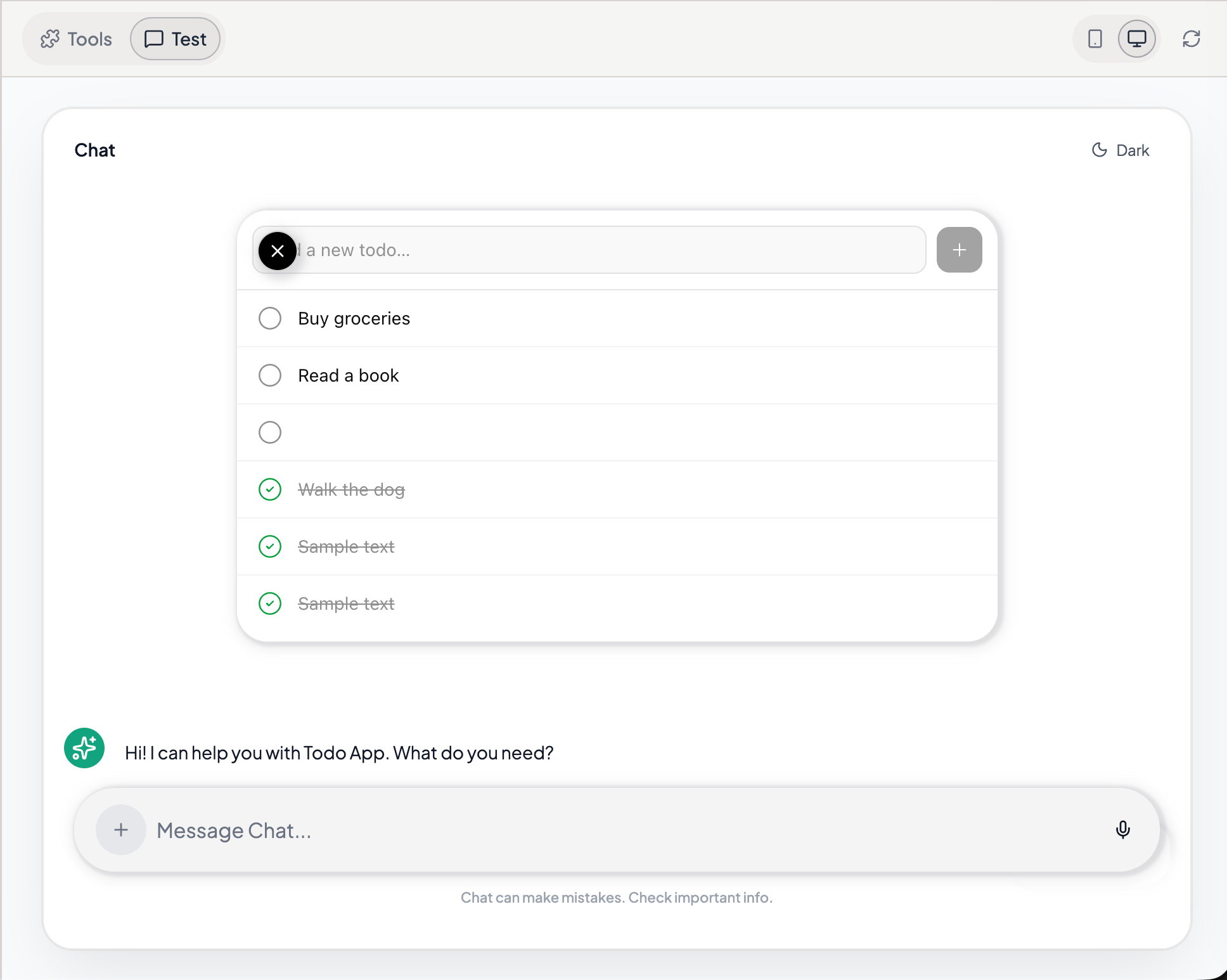
A PiP widget floating above the conversation
Choosing the Right Mode
Use this table to pick a display mode based on what you are building.Setting the Display Mode
Include the display mode when you describe the tool in the builder chat.Build a UI tool called “order_dashboard” that displays recent orders in a sortable table. Use fullscreen mode.
Create a UI tool “confirmation_card” that shows a success message after an action completes. Display inline.
Add a UI tool “live_ticker” that shows real-time price updates. Use picture-in-picture mode.
How UI Tools Call Data Tools
A widget rendered by a UI tool can trigger data tools to perform actions. For example, an order dashboard (UI tool) might have a “Cancel Order” button that calls acancel_order data tool.
When you describe this interaction in your prompt, the AI wires it up automatically:
In the order_dashboard UI tool, add a “Cancel” button on each order row. When clicked, it should call the cancel_order data tool with the order ID, then refresh the table.This keeps your UI tool focused on display and your data tool focused on the action.
Tips
Default to inline, then upgrade
Default to inline, then upgrade
Start with inline mode. If the widget feels cramped or needs scrolling, switch to fullscreen. This avoids taking over the user’s view unnecessarily.
Let users control transitions
Let users control transitions
For fullscreen widgets, include a way to return to the conversation (a close button, a “done” action). Chippy adds default navigation, but explicit controls improve the experience.
Always provide a way back
Always provide a way back
If your widget opens a detail view or drill-down, include a back button or breadcrumb. Users should never feel stuck inside a widget.
Keep inline widgets compact
Keep inline widgets compact
Inline widgets share space with chat messages. Aim for a single card, a short list (under 5 items), or a brief confirmation. If you need more space, use fullscreen.
Use PiP sparingly
Use PiP sparingly
PiP is powerful but can clutter the interface. Reserve it for content that genuinely needs to persist: media playback, live feeds, or reference material the user checks repeatedly.
Troubleshooting
What’s Next
Data Tools
Return structured data without rendering a widget.
Mock Data
Prototype with realistic data before connecting APIs.
Styling
Customize the look and feel of your widgets.
Tools
General tool design principles and configuration.