
Mock Data
Mock data is sample data that Chippy generates so your tools work immediately without connecting to a real API. When you create tools, Chippy populates them with realistic records (orders, customers, tickets, products) so you can test the full experience right away.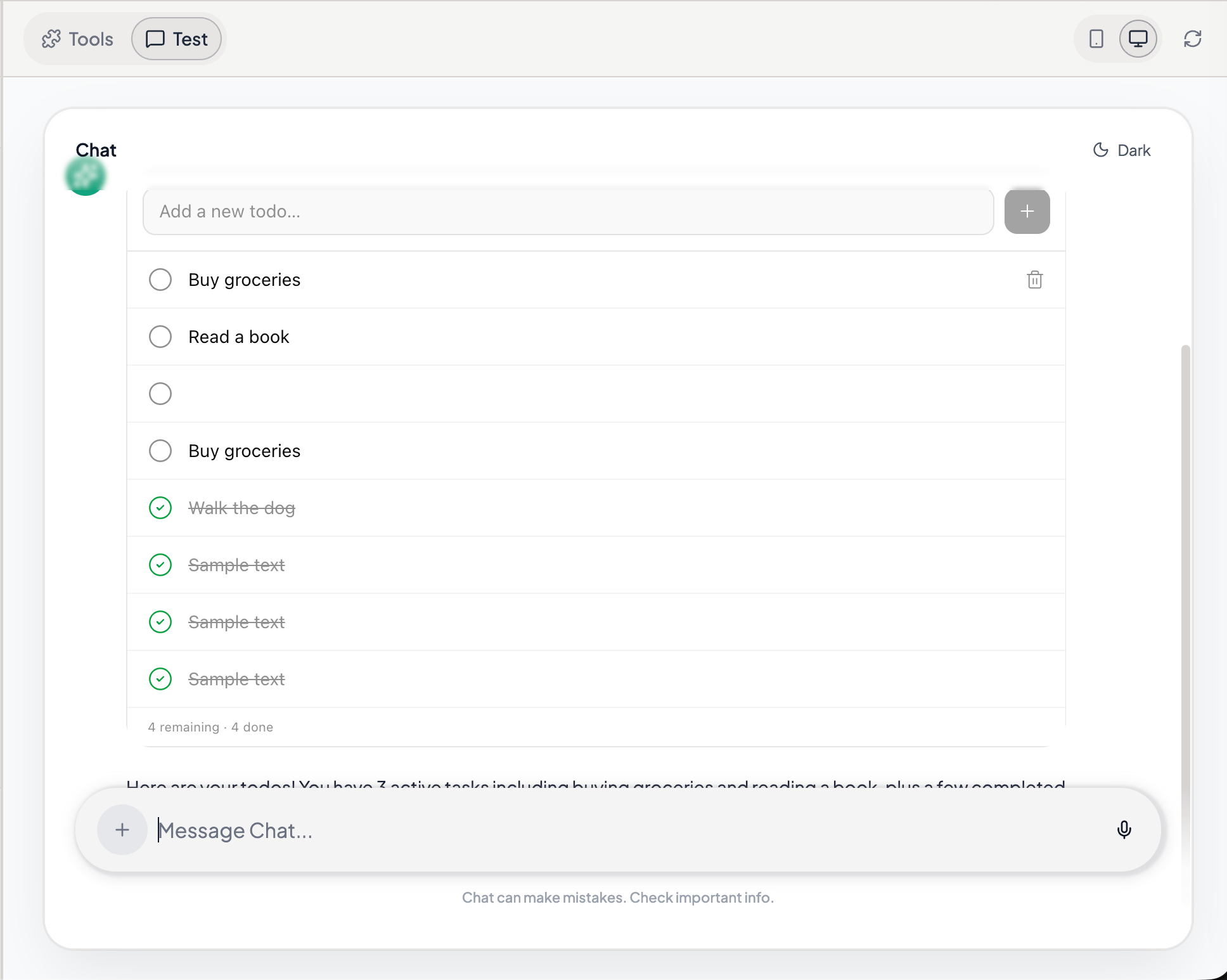
Mock data powering a preview of the order dashboard
Why Mock Data Matters
Without mock data, every new tool would return empty results until you connect a live API. Mock data removes that blocker:- Build and test immediately. No API keys, no backend setup, no waiting on another team.
- Demonstrate to stakeholders. Show a working prototype with realistic data before investing in integrations.
- Catch design issues early. See how your widgets handle real-looking data (long names, edge-case values, empty fields) before production.
How It Works
1
You create a tool
Describe a tool in the builder chat. Specify what data it works with.
2
Chippy generates mock data
The AI creates sample records that match your tool’s data structure. An order tool gets realistic orders; a customer tool gets realistic customer profiles.
3
Tools operate against mock data
When you test in the preview panel, your tools read from and write to this mock data. Get, add, update, and delete actions all work against the mock store.
4
You iterate
As you refine tools and add fields, Chippy updates the mock data to match.
Shared Mock Data Stores
Multiple tools can read from and write to the same mock data store. For example, anorder_dashboard UI tool and a search_orders data tool can both operate on the same set of order records.
To set up shared mock data, tell the AI in the builder chat:
The order_dashboard and search_orders tools should share the same mock data store for orders.Or:
Create a shared orders data store. Both order_dashboard and cancel_order should read from and write to it.
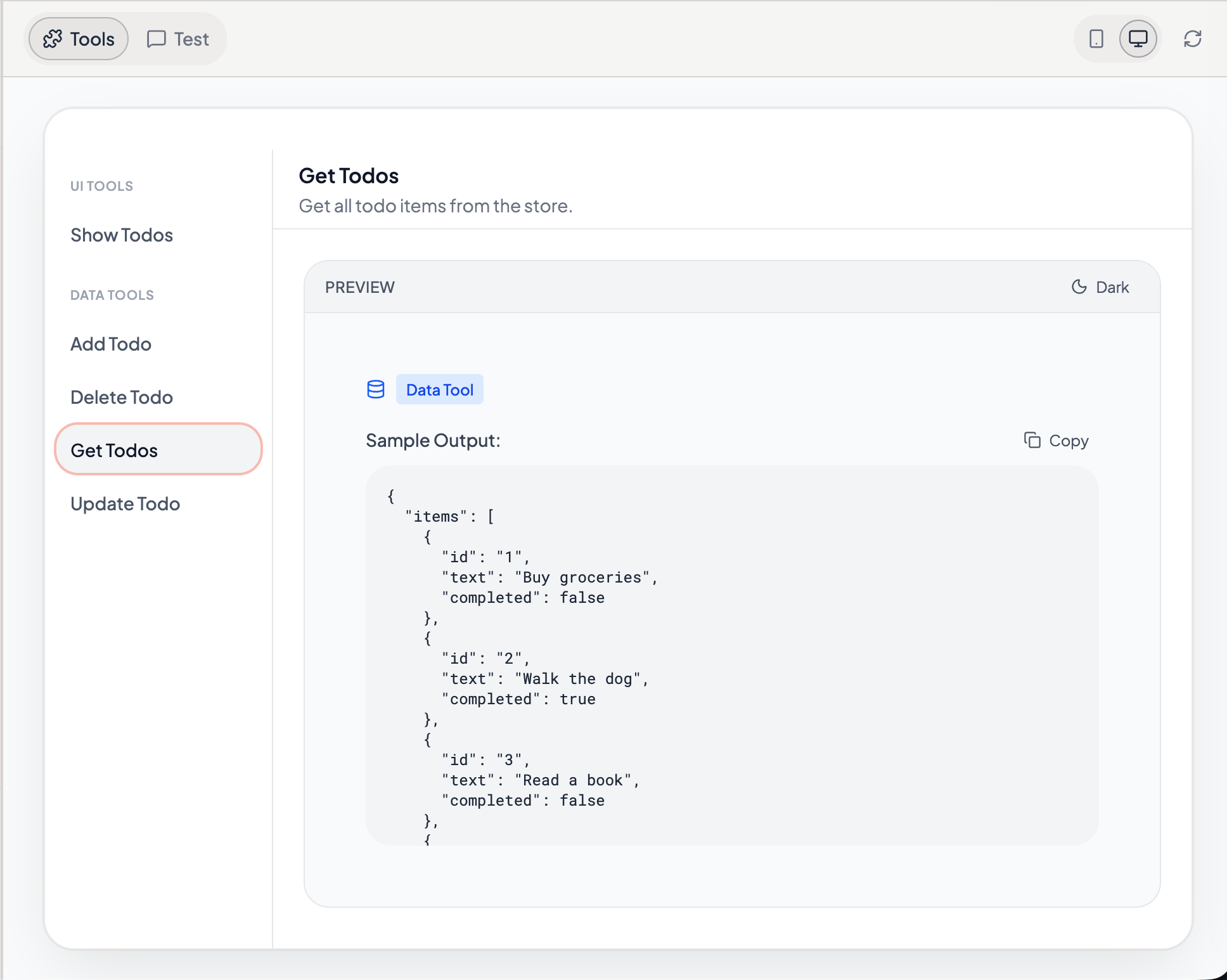
Shared mock data store connected to multiple tools
When tools share a mock data store, changes made by one tool are visible to the others. If
cancel_order marks order #1234 as cancelled, order_dashboard shows the updated status immediately.How Mock Actions Work Against Mock Data
Data tools use mock actions to perform CRUD operations against mock data. Here is what each action does in the mock store.Testing a Full Workflow
You can test an entire create-read-update-delete cycle using mock data:1
Create a record
Call
create_ticket with a subject and sender. A new ticket appears in the mock store.2
Read it back
Call
get_tickets or open the triage_dashboard widget. The new ticket appears in the list.3
Update it
Call
update_ticket_status to assign the ticket to a team. The record updates in the mock store.4
Delete it
Call
delete_ticket with the ticket ID. The record is removed from the mock store.Editing Mock Data
To change mock data, describe what you want in the builder chat. The AI updates the mock store for you. Example prompts:Add 20 more mock orders with a mix of statuses: pending, shipped, delivered, and cancelled.
Change the mock customer data to include international addresses.
Add edge cases to the mock data: an order with a very long customer name, an order with zero items, and an order with a future date.
Remove all the mock tickets with “low” urgency and replace them with “critical” urgency tickets.
When to Switch from Mock to Real APIs
Mock data is a prototyping tool. At some point, you will need live data. Here are signals that it is time to switch.Switching to a Real API
1
Add an API integration
Go to API Integrations and connect the service your tool needs.
2
Store credentials as secrets
Add API keys and tokens in Secrets. Never put them in prompts or tool text.
3
Update the tool
Tell the AI to connect the tool to the real API:
Connect the search_orders data tool to the Shopify API. Use the shopify_api_key secret. Query the /orders endpoint.
4
Test with real data
Run the tool in preview and verify the results match expectations. Check Traces to inspect the API calls.
You can migrate tools one at a time. Some tools can stay on mock data while others connect to live APIs. This lets you validate one integration before moving on to the next.
Troubleshooting
What’s Next
Data Tools
Build tools that perform actions on your data.
API Integrations
Connect tools to live services.
Secrets
Store API keys and credentials securely.
Traces
Debug and monitor tool invocations.