
Builder Chat
The builder chat is where you describe what you want and Chippy builds it. You type a prompt, the AI generates tools, widgets, and mock data, and you iterate from there.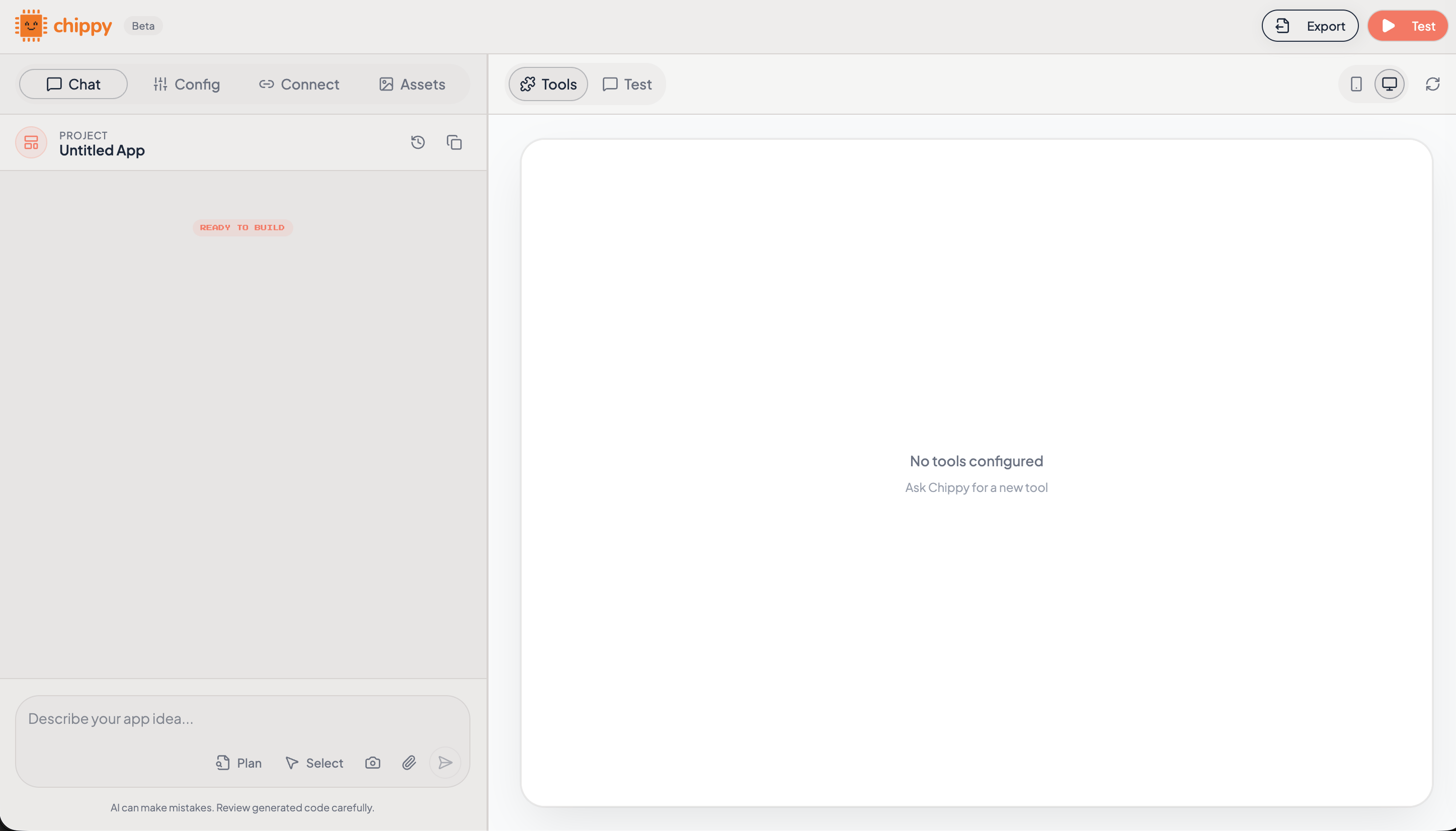
The builder chat interface
Builder Interface Overview
The builder has a split-panel layout. The left side has four tabs; the right side shows a live preview of your app.Left Panel Tabs
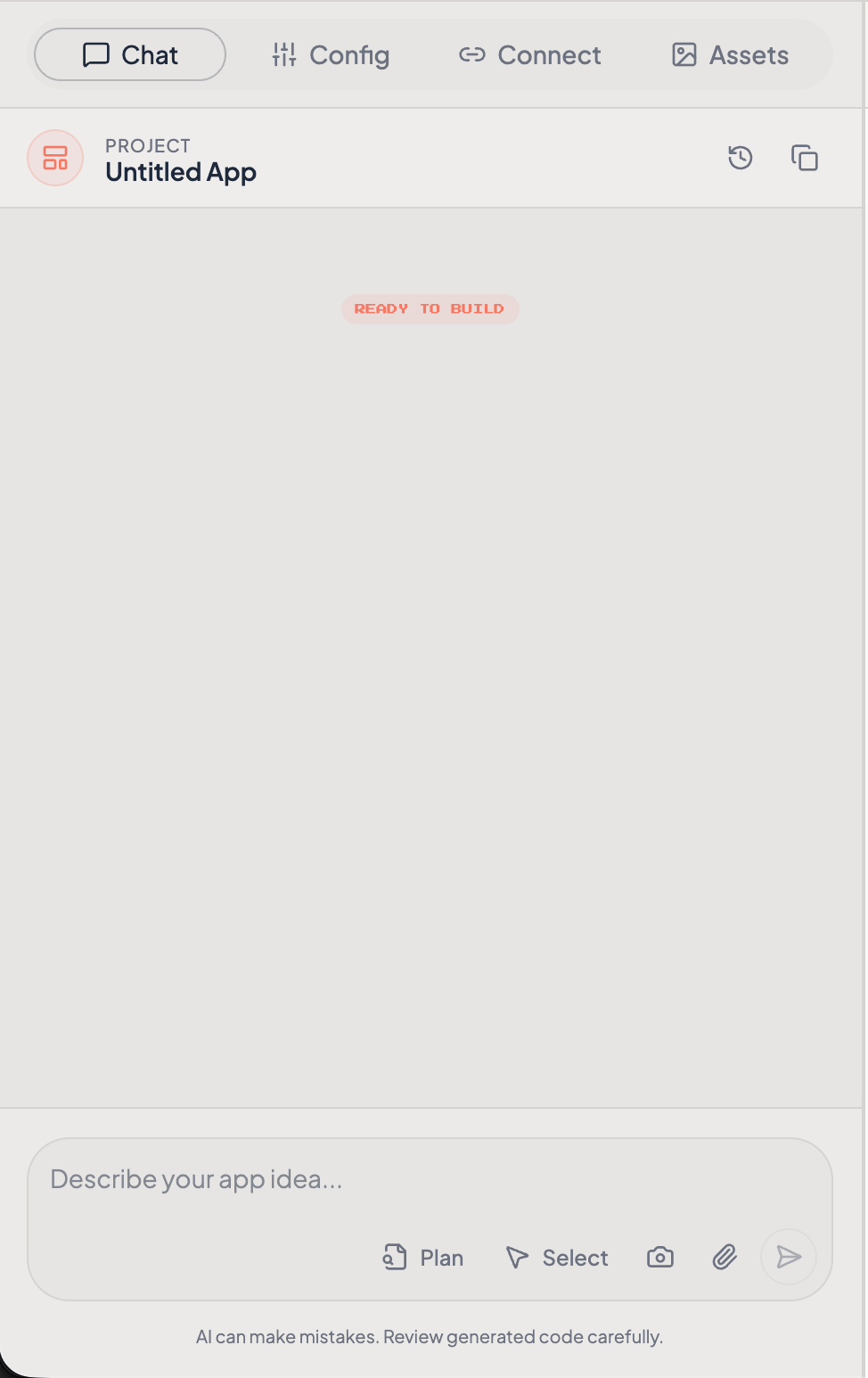
The four tabs in the builder left panel
Right Panel: Preview
The preview panel has two modes:
You can also toggle between desktop and mobile views to see how your widgets look at different sizes.
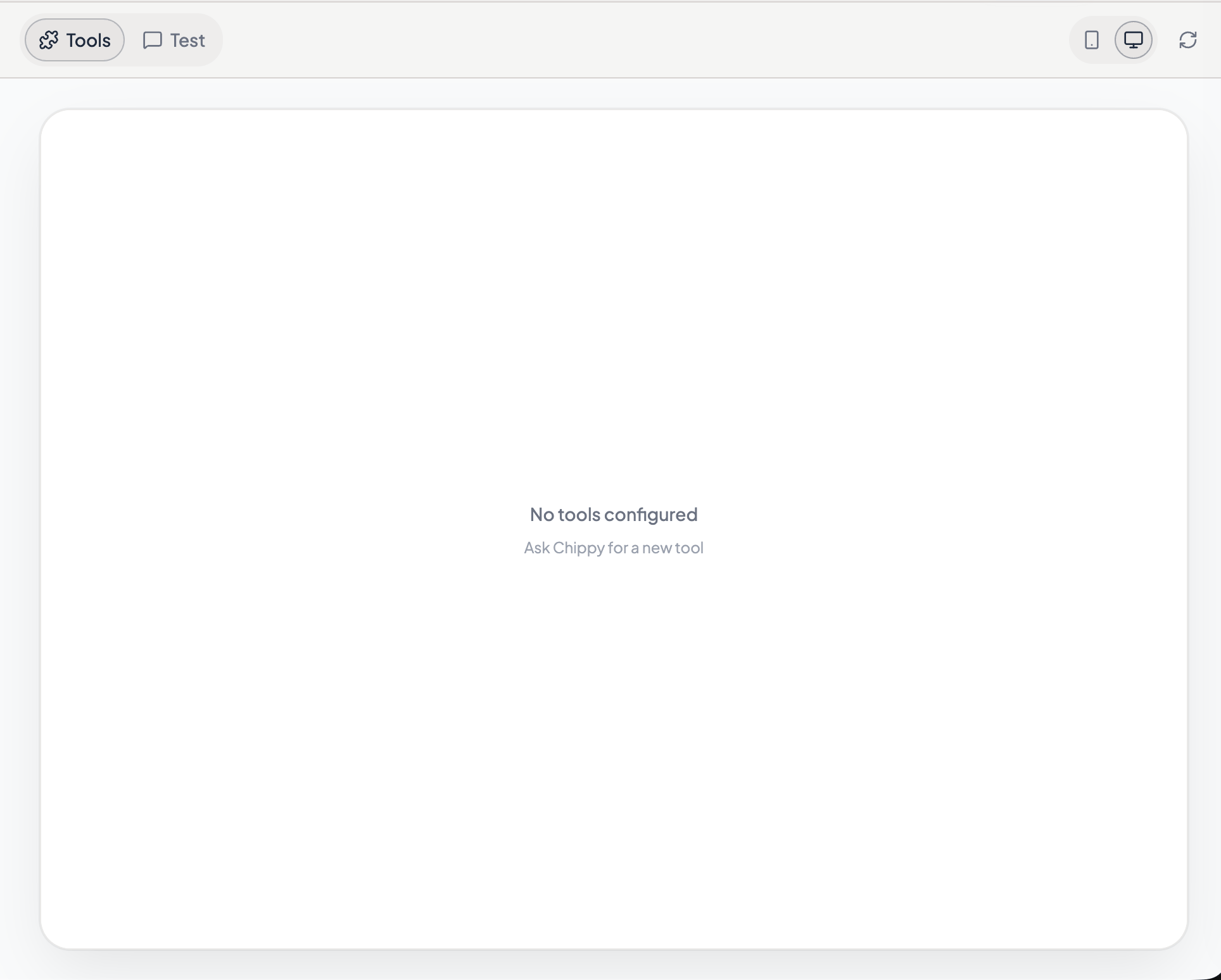
Design mode vs Test mode in the preview panel
How It Works
1
Type a prompt
Describe your app, a new tool, or a change to something that already exists. Be specific about what the tool does, who uses it, and what the output looks like.
2
The AI generates
Chippy creates tools, widget code, mock data, and configuration. A progress timeline shows each step as it happens.
3
Review in preview
Your result appears in the preview panel. Click through the widget, check the data, and verify behavior.
4
Iterate
Send another prompt to refine. One change at a time produces the best results.
Chat Input Features
The chat input area includes several tools beyond plain text.Image Attachments
You can attach images to your prompts by pasting from your clipboard or clicking the attachment button. Up to 5 images per message. Chippy compresses large images automatically. Use image attachments to:- Show a design mockup you want the AI to replicate
- Share a screenshot of a bug or layout issue
- Provide a reference for styling or layout
Screenshot Capture
Click the camera icon in the chat input to capture a screenshot of the current preview. The screenshot is attached to your next message, so you can say things like:Fix the alignment issue in this screenshot.
Make this card layout match the attached design.
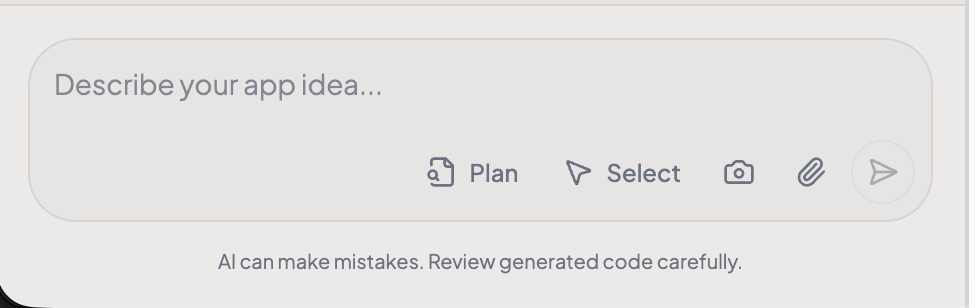
Screenshot capture button in the chat input
Element Selection
Click the pointer icon in the chat input to enter element selection mode. In this mode, you can click on any element in the preview to select it. The selected element appears as a badge in the chat input showing its tag name, text content, and CSS classes. This lets you make precise edits by pointing at exactly what you want to change:Make this button red.
Move this heading above the table.
Delete this section.You can also:
- Edit text inline by double-clicking a selected element
- Delete elements by selecting them and pressing the delete key
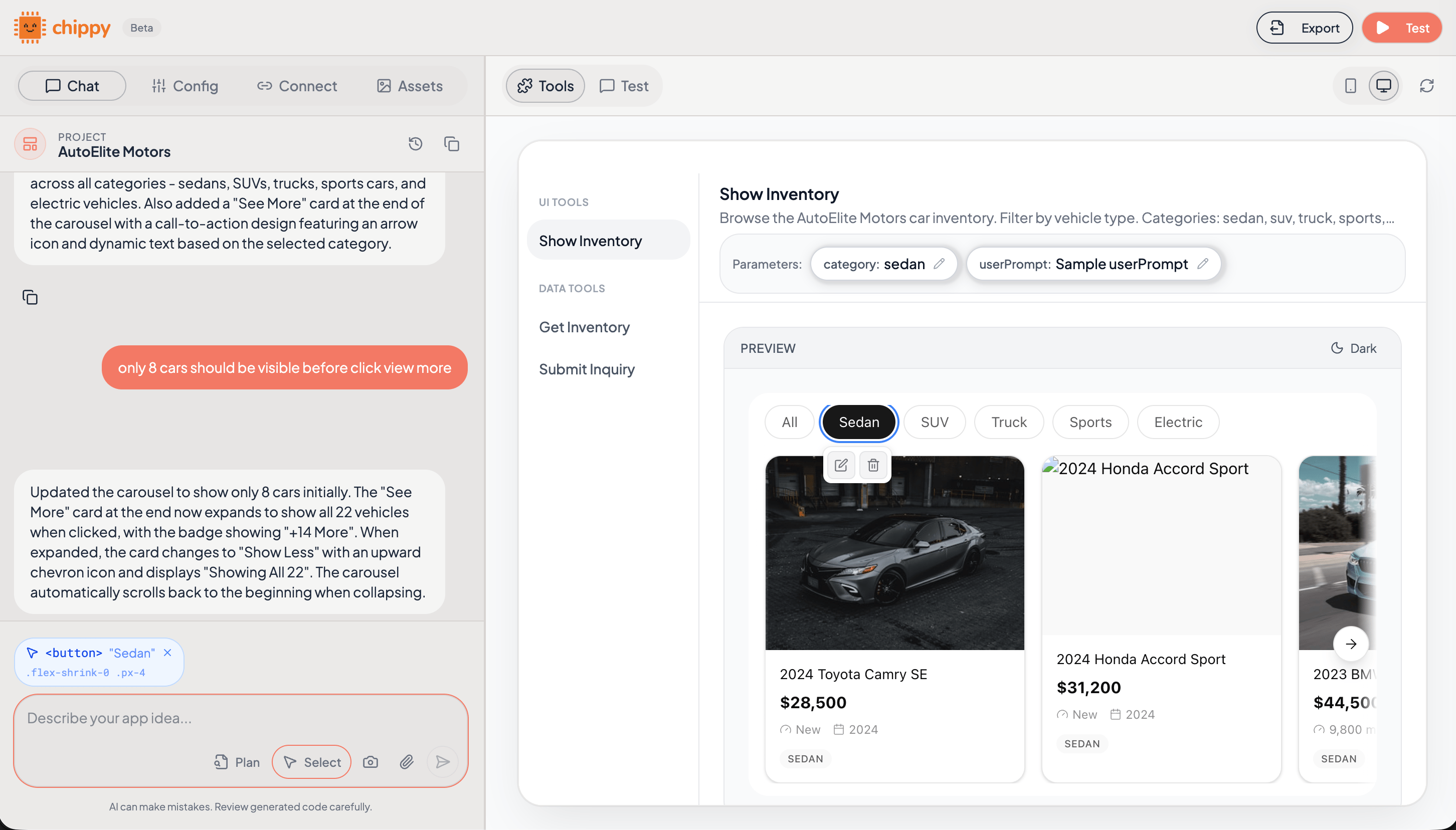
Element selection mode with a selected button element
Plan Mode
Toggle Plan Mode in the chat input to ask the AI to analyze your request and outline what it will do before making any changes. The AI responds with a structured plan listing which tools it will create or modify, what mock data changes it will make, and any potential issues. Review the plan, then approve it to proceed with generation. When to use plan mode:- You are unsure how a change will affect existing tools
- You want to see the AI’s approach before it writes code
- You are making a structural change (adding multiple tools, reorganizing data)
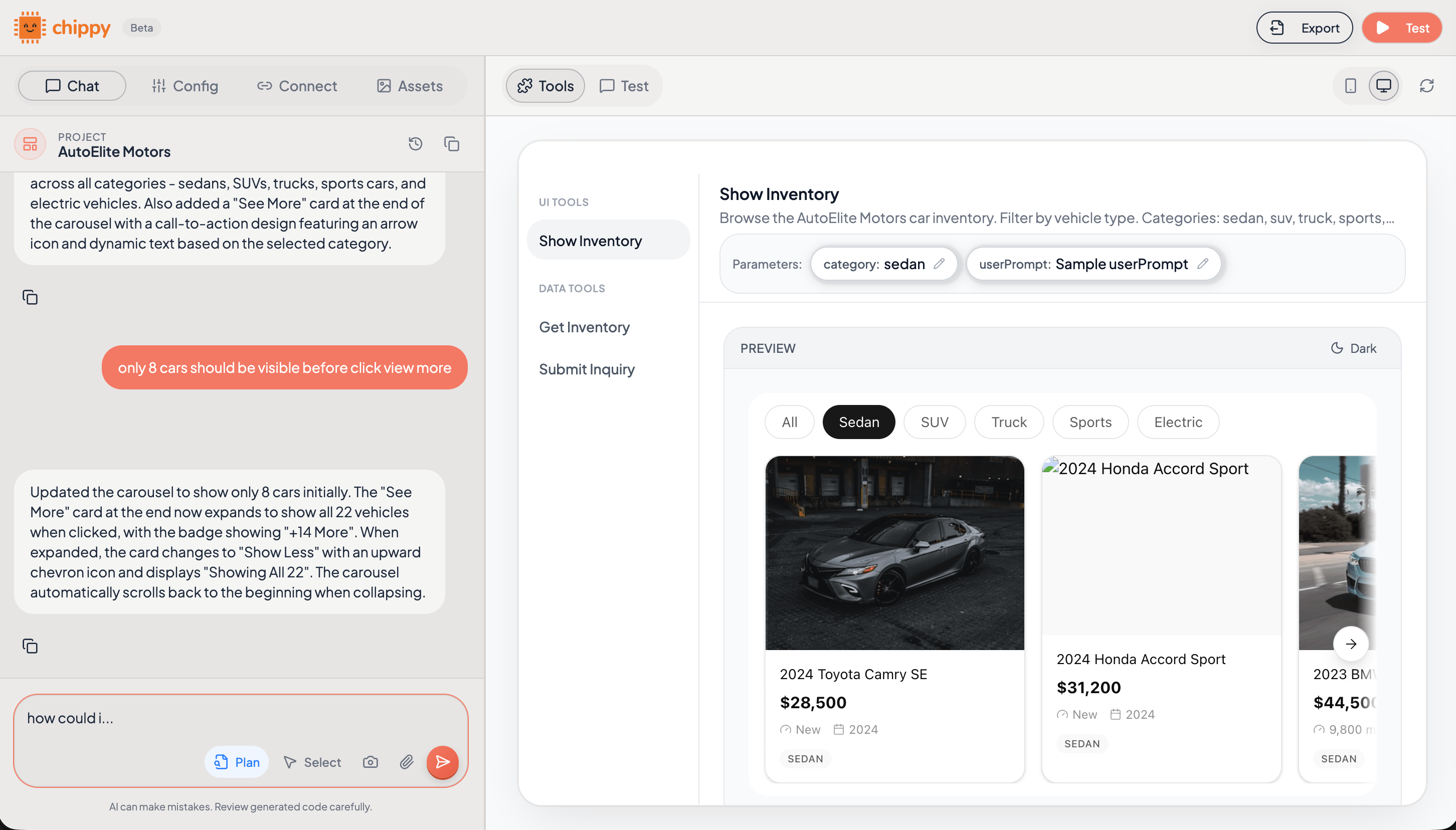
Plan mode toggle and a plan response
Progress Timeline
When the AI is generating, a progress timeline shows each step in real time: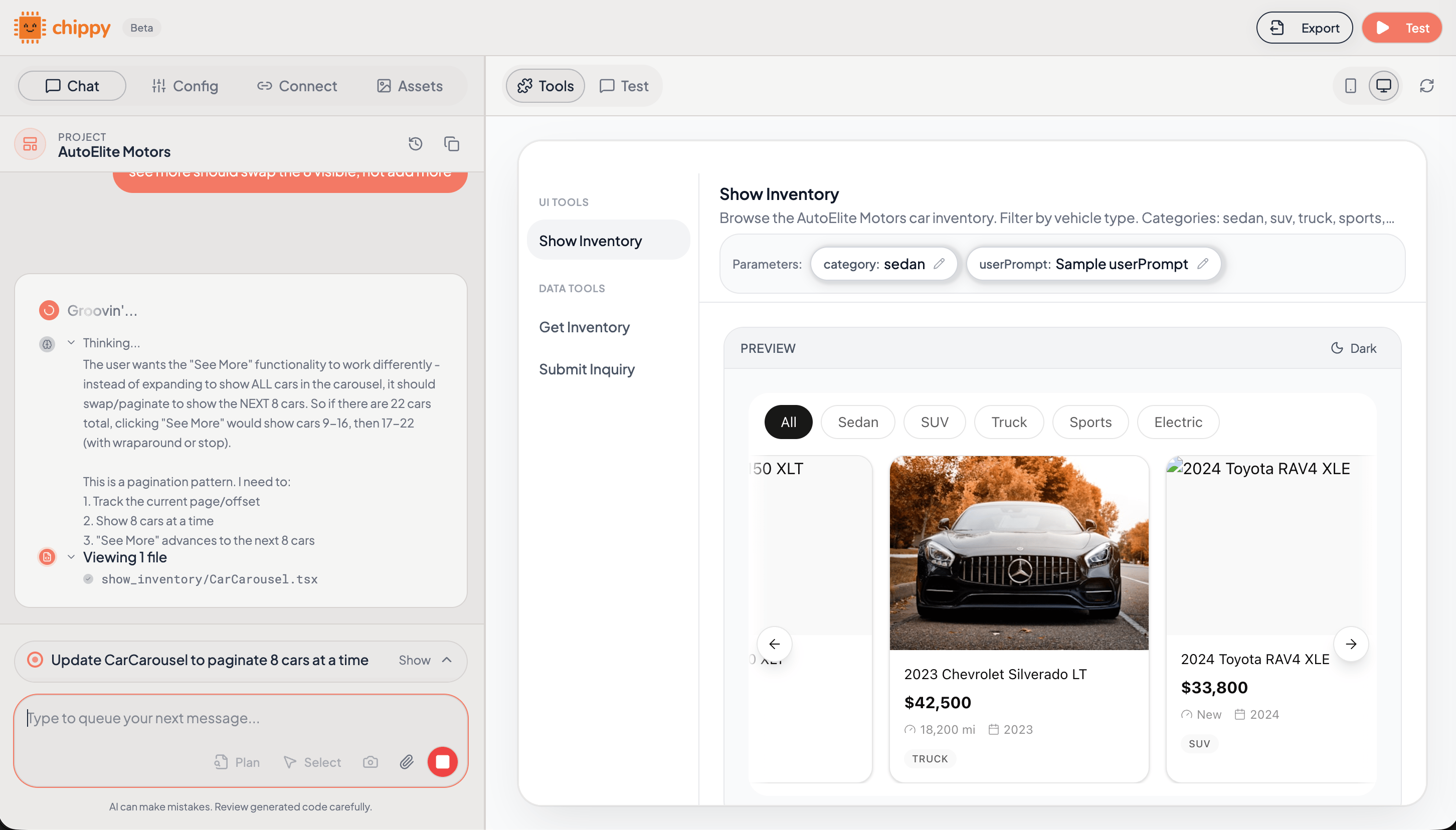
Progress timeline during generation
Change History
Click the history icon in the chat to browse previous versions of your app. Each version includes a screenshot of the preview at the time it was saved. You can restore any previous version if a change went wrong.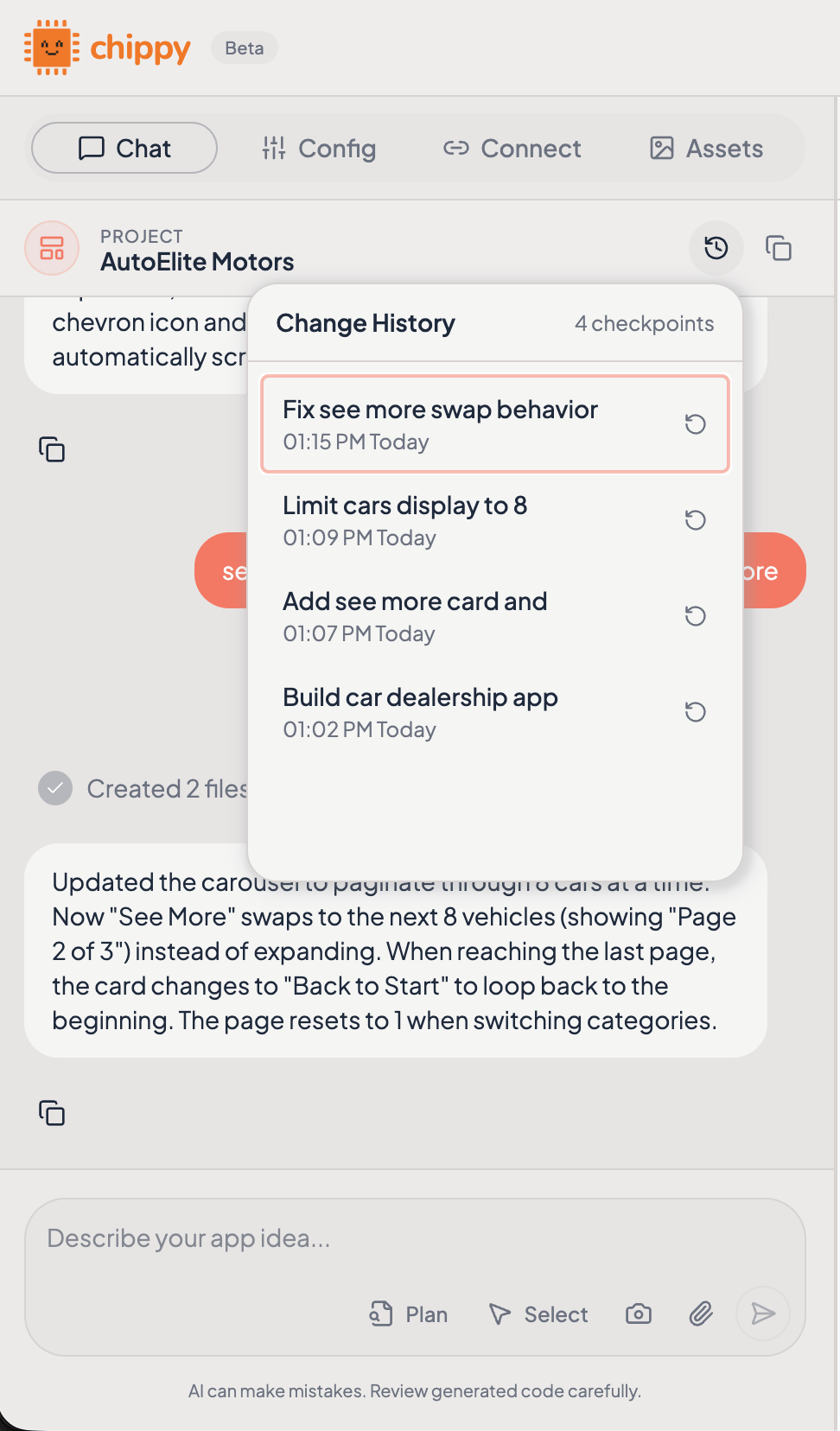
Change history with version snapshots
Great First Prompts
The best initial prompts are specific about what you are building, what tools to create, and what the output should look like. Here are four examples that produce strong results on the first generation.Support Triage
Build a support triage app with two tools:Why this works: It names each tool, specifies the type (UI vs data), describes the layout, and sets the display mode.
- A UI tool called “triage_dashboard” that shows incoming tickets in a table with columns for subject, sender, urgency (high/medium/low), and suggested team. Display fullscreen.
- A data tool called “update_ticket_status” that marks a ticket as assigned to a specific team.
Inventory Tracker
Create an inventory tracking app. I need:Why this works: It separates reading (UI tool) from writing (data tools) and gives the AI clear column definitions.
- A UI tool “inventory_list” that shows all products in a sortable table with columns for SKU, name, quantity, and reorder status. Fullscreen mode.
- A data tool “update_stock” that adjusts the quantity for a given SKU.
- A data tool “search_products” that finds products by name or SKU.
Order Dashboard
Build an order management dashboard:Why this works: It describes the interaction model (search bar filters the table, detail lookup by ID) and separates the display from the actions.
- A UI tool “order_dashboard” that displays recent orders in a table with order ID, customer name, total, and status. Include a search bar to filter by order ID or customer. Fullscreen.
- A data tool “get_order_details” that returns the full details for a specific order ID.
- A data tool “cancel_order” that cancels an order and returns a confirmation.
Analytics Viewer
Create an analytics viewer with:Why this works: It describes specific visual components (cards, line chart) and tells the AI what data each tool handles.
- A UI tool “analytics_overview” that shows a dashboard with cards for total users, active sessions, and conversion rate. Include a line chart of daily active users over the past 30 days. Fullscreen.
- A data tool “get_metrics” that returns current metric values for a given date range.
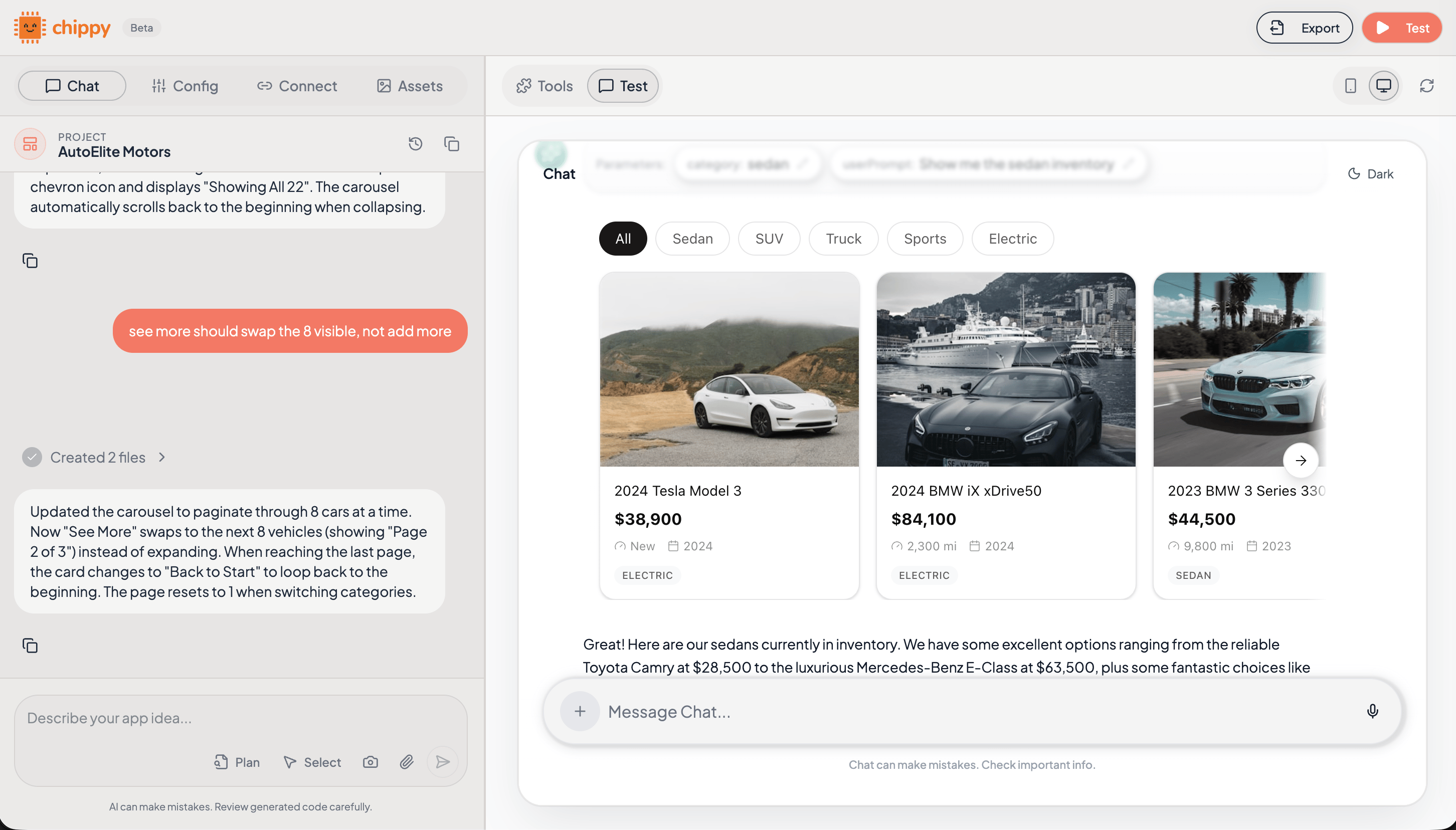
A well-structured first prompt and its generated output
Iteration: Refine One Thing at a Time
After the first generation, resist the urge to change everything at once. Focused follow-up prompts produce more reliable edits.Before and After
Too much at once (avoid this):Change the table to cards, add filtering, make it paginated, add a dark header, sort by date, and show a total count at the top.One change at a time (do this instead):
Change the order table to a card layout. Each card should show order ID, customer name, and status.Then, after reviewing:
Add a search bar above the cards that filters by order ID or customer name.Then:
Add pagination below the cards. Show 10 cards per page.
Each follow-up prompt builds on a stable foundation. If something breaks, you know exactly which change caused it.
Common Prompting Mistakes
Tips for Faster Iteration
Name your tools explicitly
Use descriptive names like “search_orders” and “order_dashboard” so the AI knows exactly which tool you are referring to in follow-up prompts.
Reference existing tools by name
Say “In the order_dashboard tool, add a status filter” instead of “add a filter to the dashboard.”
Attach screenshots for visual issues
Capture a screenshot and describe what is wrong. “Fix the alignment issue in this screenshot” is faster than describing the problem in words.
Use element selection for precise edits
Click on the exact element you want to change, then describe the edit. The AI knows exactly what you are pointing at.
What’s Next
UI Tools
Learn about display modes and interactive widgets.
Data Tools
Return structured data without rendering a widget.
Mock Data
Prototype with realistic data before connecting APIs.
Tools
Design tools that are easy for models to pick and users to trust.