
Data Tools
Data tools return JSON results to ChatGPT without rendering a widget. They handle lookups, mutations, calculations, and status checks: the backend actions that power your app.When to Use a Data Tool
Use a data tool when:- You need to look up a record (find an order, search products, get user details)
- You need to create, update, or delete something (add a ticket, change a status, remove an item)
- You need to run a calculation or aggregation (total revenue, average response time)
- You need to check a status (is the server up, has the payment cleared)
How Data Tools Work
1
ChatGPT calls the tool
Based on the conversation, ChatGPT decides to invoke your data tool with the appropriate parameters.
2
The tool runs
Your data tool executes its logic: querying mock data, calling an API, or performing a calculation.
3
JSON is returned
The tool returns structured JSON data to ChatGPT. No widget is rendered.
4
ChatGPT uses the result
ChatGPT reads the JSON and incorporates the information into its text response to the user.
Mock Actions
When you first create data tools, they operate against mock data. Chippy generates realistic sample data so your tools work immediately without a real API. Each data tool uses one of four mock actions.Mock actions change data in your mock store during the session. This lets you test full create/read/update/delete workflows before connecting real APIs.
How UI Tools Call Data Tools
A common pattern is pairing a UI tool (for display) with one or more data tools (for actions). The widget rendered by a UI tool can trigger data tools when the user interacts with it.Example: Order Dashboard
Consider an app with these tools:
Here is how they work together:
1
User asks to see orders
ChatGPT invokes
order_dashboard, which renders the table widget with mock order data.2
User types in the search bar
The widget calls
search_orders with the user’s query. The data tool returns matching orders, and the table updates.3
User clicks Cancel on an order
The widget calls
cancel_order with the order ID. The data tool marks the order as cancelled and returns a confirmation. The table row updates to show the new status.Build an order management app with:The search bar in order_dashboard should call search_orders. Each row should have a Cancel button that calls cancel_order.
- A UI tool “order_dashboard” in fullscreen that shows orders in a table with columns for order ID, customer, total, and status. Include a search bar at the top.
- A data tool “search_orders” that takes a query string and returns matching orders.
- A data tool “cancel_order” that takes an order ID and marks the order as cancelled.
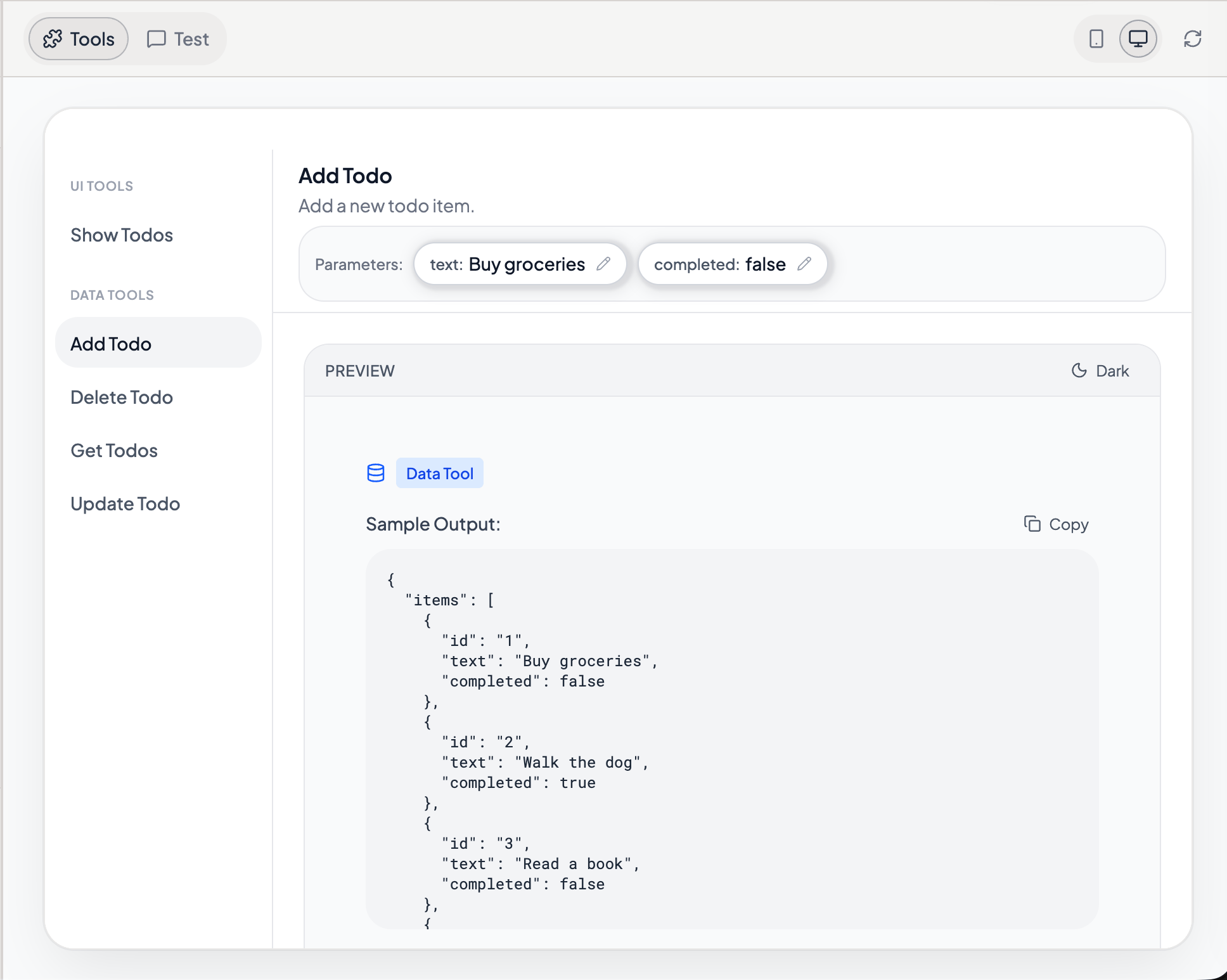
Order dashboard with search and cancel powered by data tools
Data Tools vs UI Tools: Decision Guide
Use this table to decide which type of tool to create.Creating a Data Tool
Describe the tool in the builder chat with its name, action type, inputs, and outputs. Get example:Create a data tool called “get_customer” that takes a customer ID and returns the customer’s name, email, plan, and account creation date.Add example:
Create a data tool called “add_note” that takes a ticket ID and note text, then adds the note to the ticket’s history.Update example:
Create a data tool called “update_priority” that takes a ticket ID and a new priority level (low, medium, high), then updates the ticket.Delete example:
Create a data tool called “remove_tag” that takes a product ID and a tag name, then removes that tag from the product.
Troubleshooting
What’s Next
UI Tools
Display interactive widgets in ChatGPT.
Mock Data
Prototype with realistic sample data.
API Integrations
Replace mock data with live API connections.
Tools
General tool design principles and configuration.