
Build Your First App
This walkthrough takes you from zero to a working ChatGPT app. By the end, you’ll have an app with tools and widgets that you can use inside ChatGPT.1. Create a New App
From the dashboard, click New App. Give it a name and pick an icon.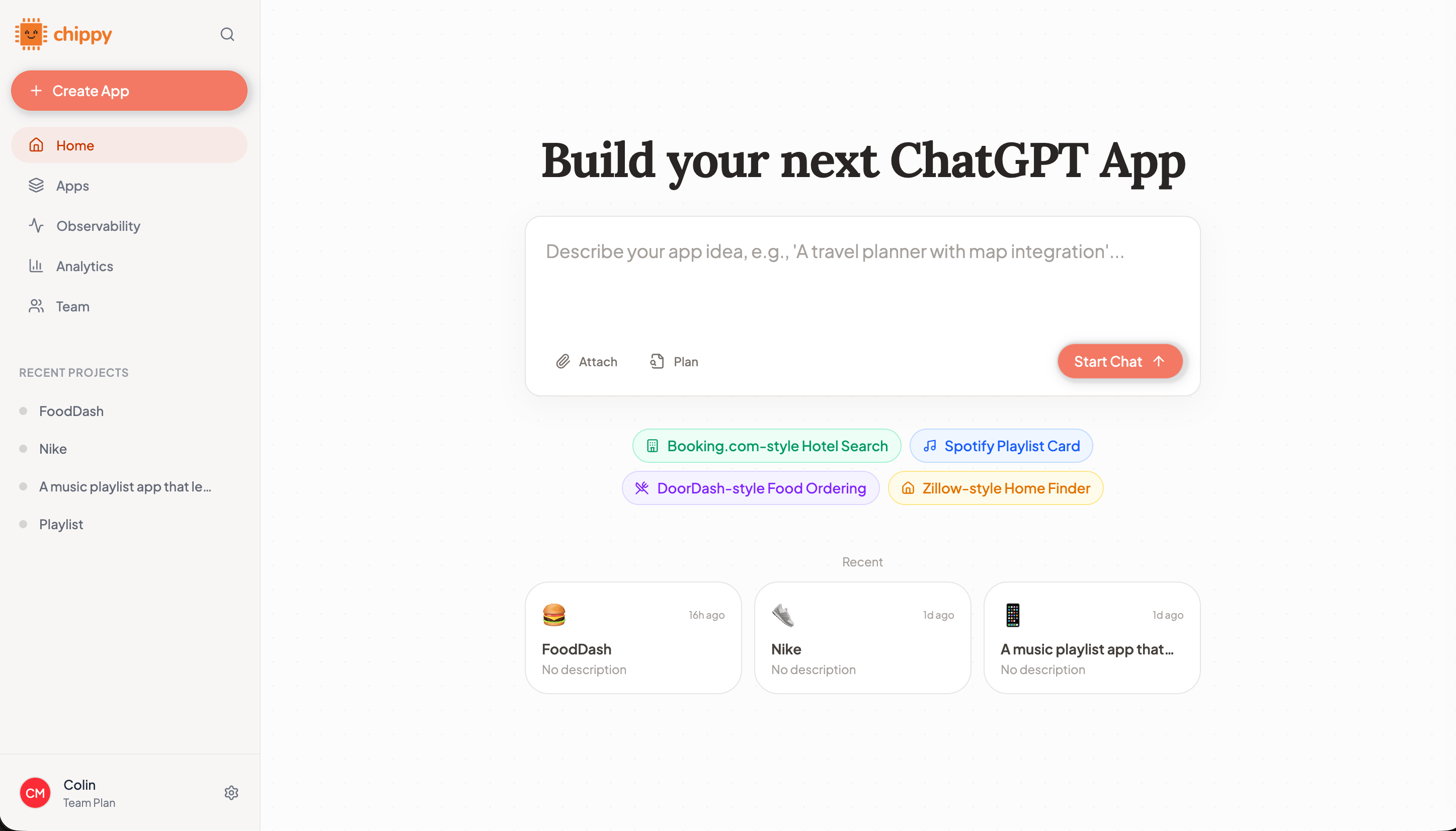
The new app screen
2. Describe What You Want
In the builder chat, describe your app in plain language. Be specific about:- Who uses it (support agents, sales reps, customers)
- What it does (classifies tickets, shows order status, tracks inventory)
- What a good result looks like (a ranked list with urgency scores, a dashboard with filters)
Build a support triage app with two tools:
- A UI tool called “triage_dashboard” that shows incoming tickets in a table with columns for subject, sender, urgency (high/medium/low), and suggested team. Display in fullscreen mode.
- A data tool called “update_ticket_status” that marks a ticket as assigned to a specific team.
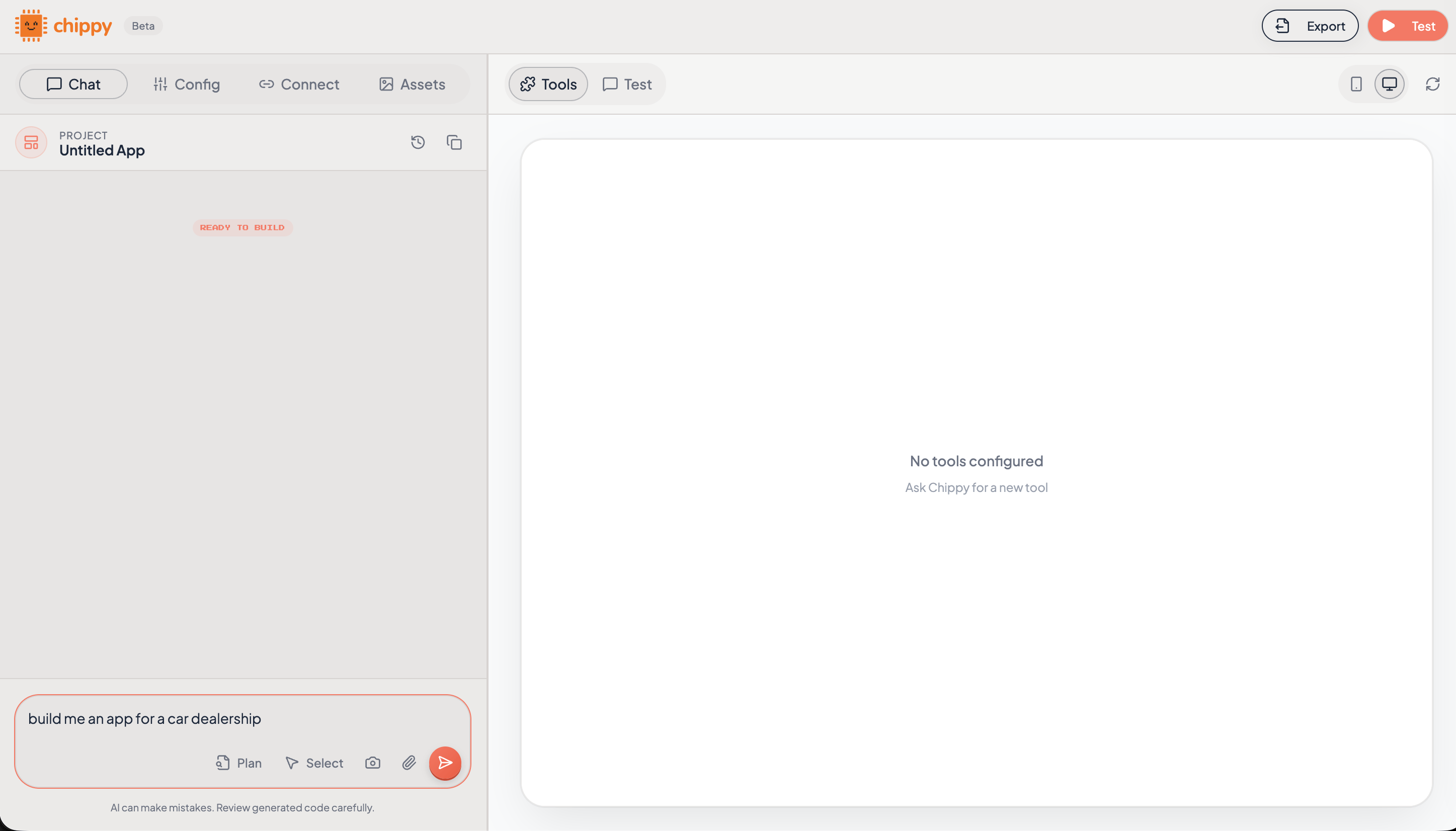
Entering your first prompt in the builder
3. Watch Chippy Build
The AI generates your tools, widgets, and mock data. You’ll see a progress timeline showing each step as it happens.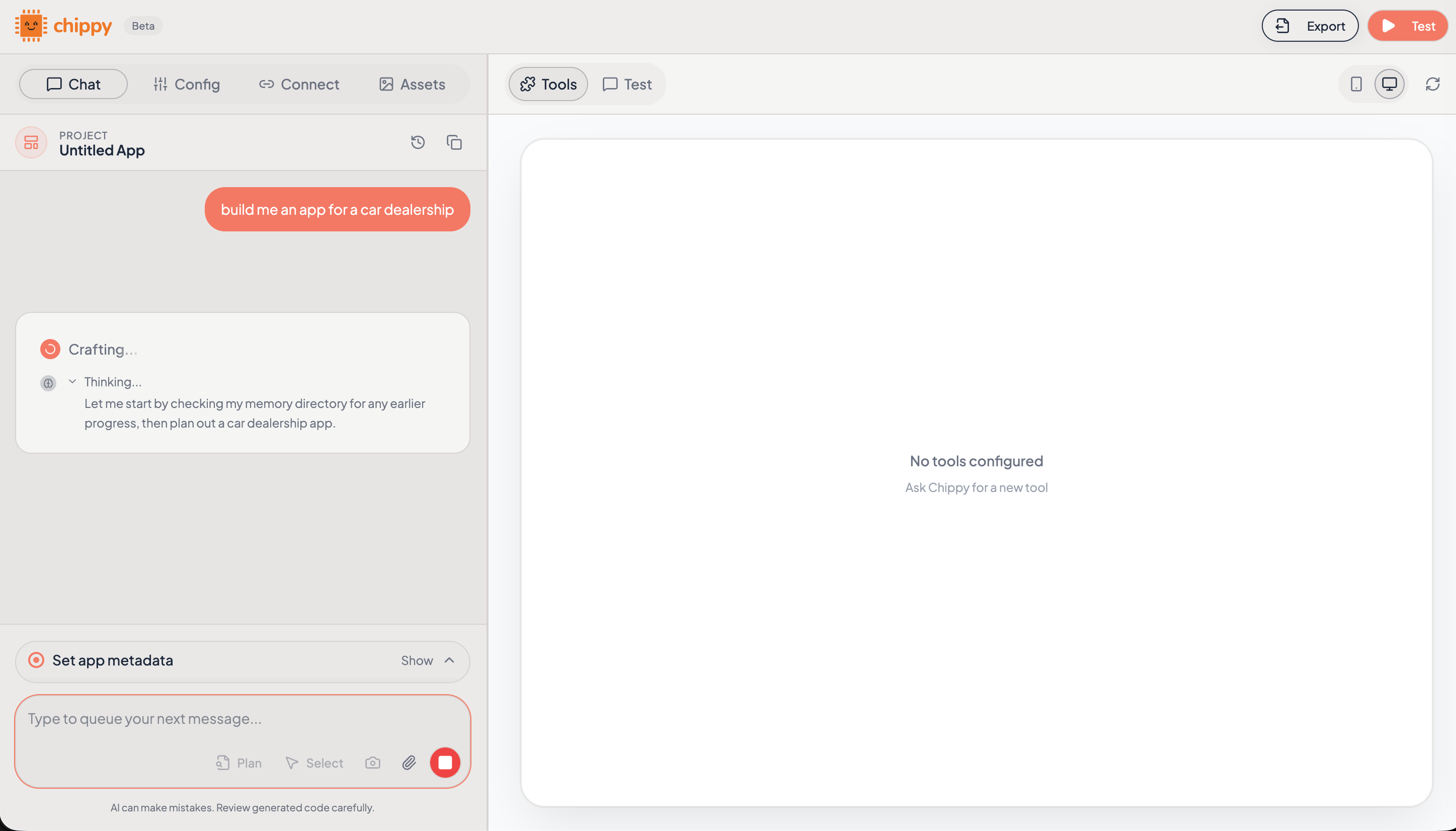
The builder creating tools and widgets in real time
4. Test in Preview
Once generation completes, your app appears in the preview panel on the right side of the builder. Click through your widgets to verify they look and behave correctly.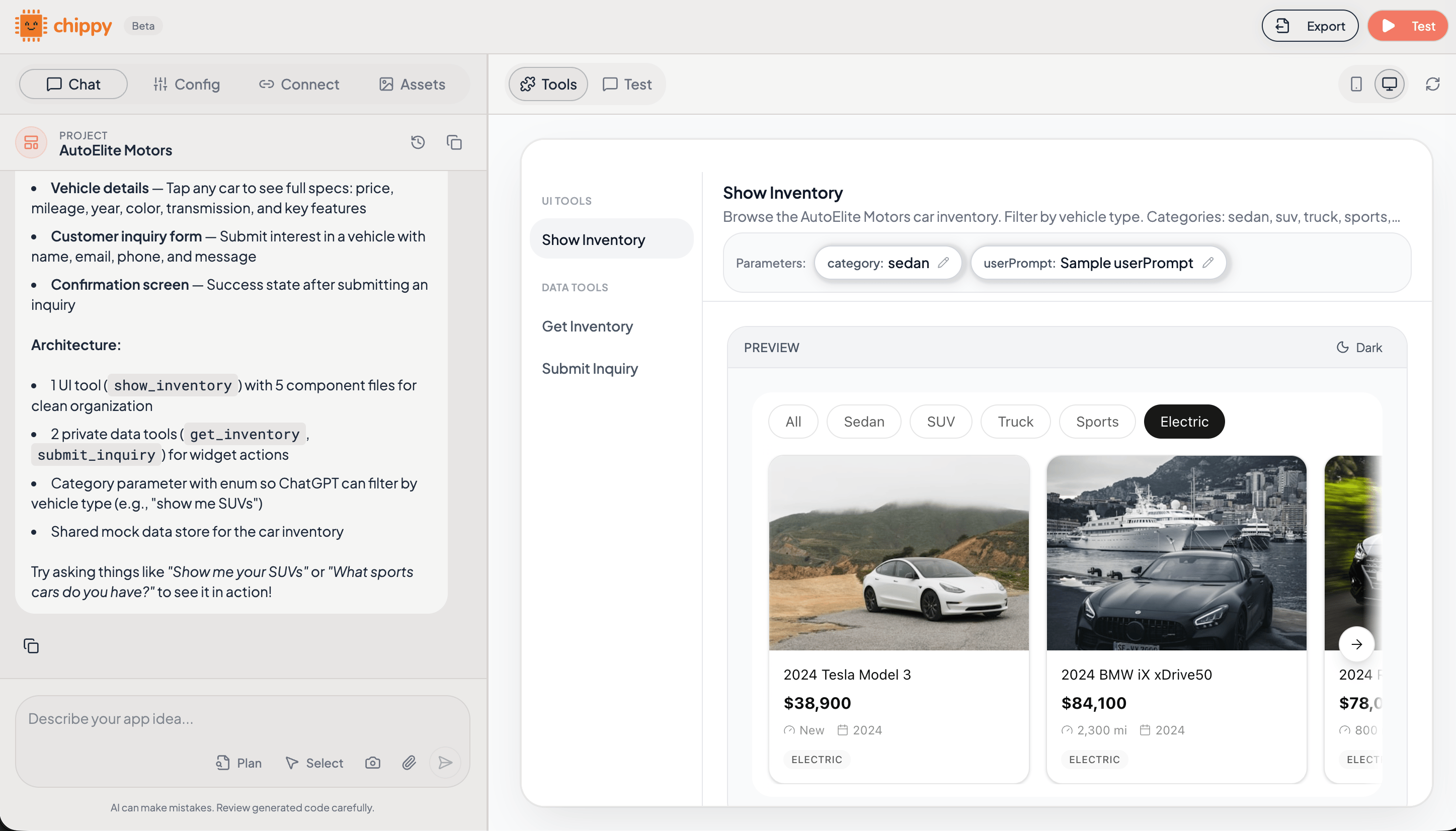
Testing your app in the preview panel
- Does the UI render correctly?
- Do buttons and interactions work?
- Does mock data look realistic?
5. Connect to ChatGPT
Every app gets its own MCP endpoint. Copy your preview URL and add it to ChatGPT: Your preview URL:- Open ChatGPT and go to Settings > Connected Apps (or your ChatGPT Apps configuration)
- Add a new MCP server with your preview URL
- Start a conversation and ask ChatGPT to use your app
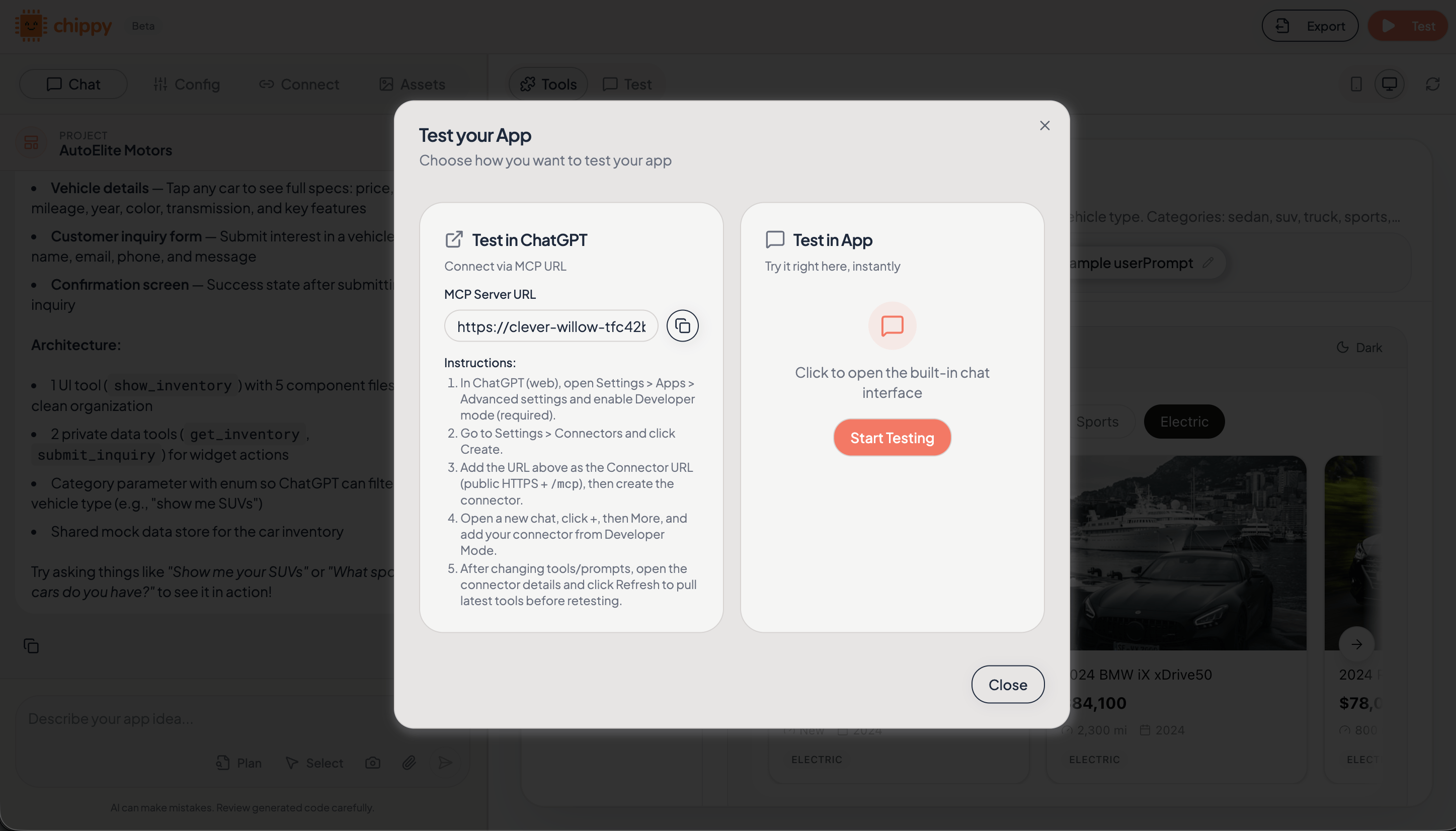
Adding your MCP URL to ChatGPT
6. Make an Edit
Go back to the builder and make a focused change. Small, specific edits work best. Example follow-up prompt:Add an urgency badge to each ticket row: red for high, yellow for medium, green for low. Also add a “Reassign” button that calls update_ticket_status.
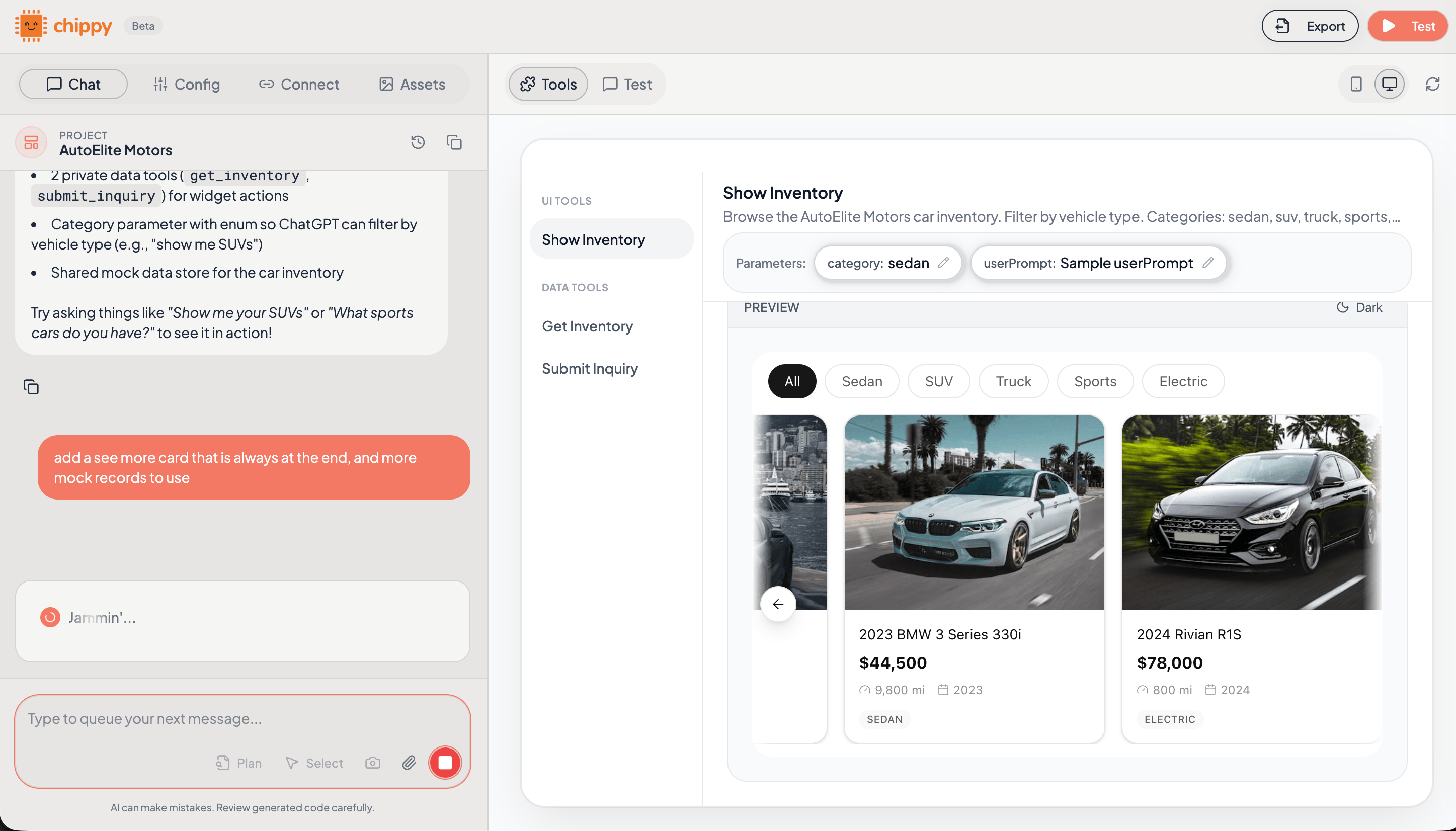
Making a targeted edit in the builder
7. Verify with Traces
After testing your app in ChatGPT, check the Traces dashboard to see exactly what happened: which tools were called, what inputs they received, and what they returned.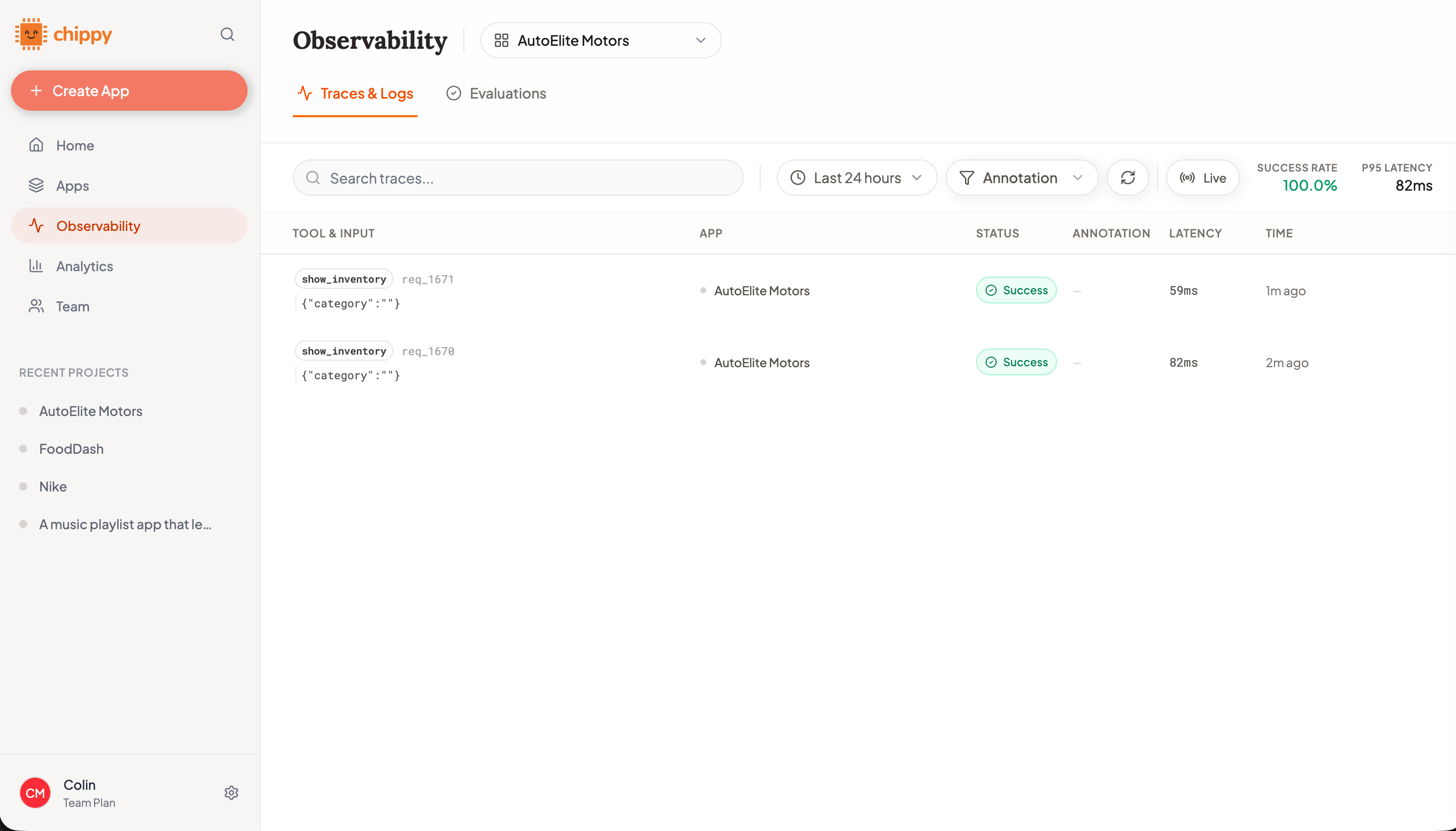
Reviewing tool invocation traces
Traces require Solo plan or higher.
8. Save Evaluation Cases
Turn important traces into reusable test cases. In a trace detail view, click Add to Golden Set to save the trace as an evaluation case, capturing the input, expected tool, and expected output. Run your eval suite after every change to catch regressions before they reach users.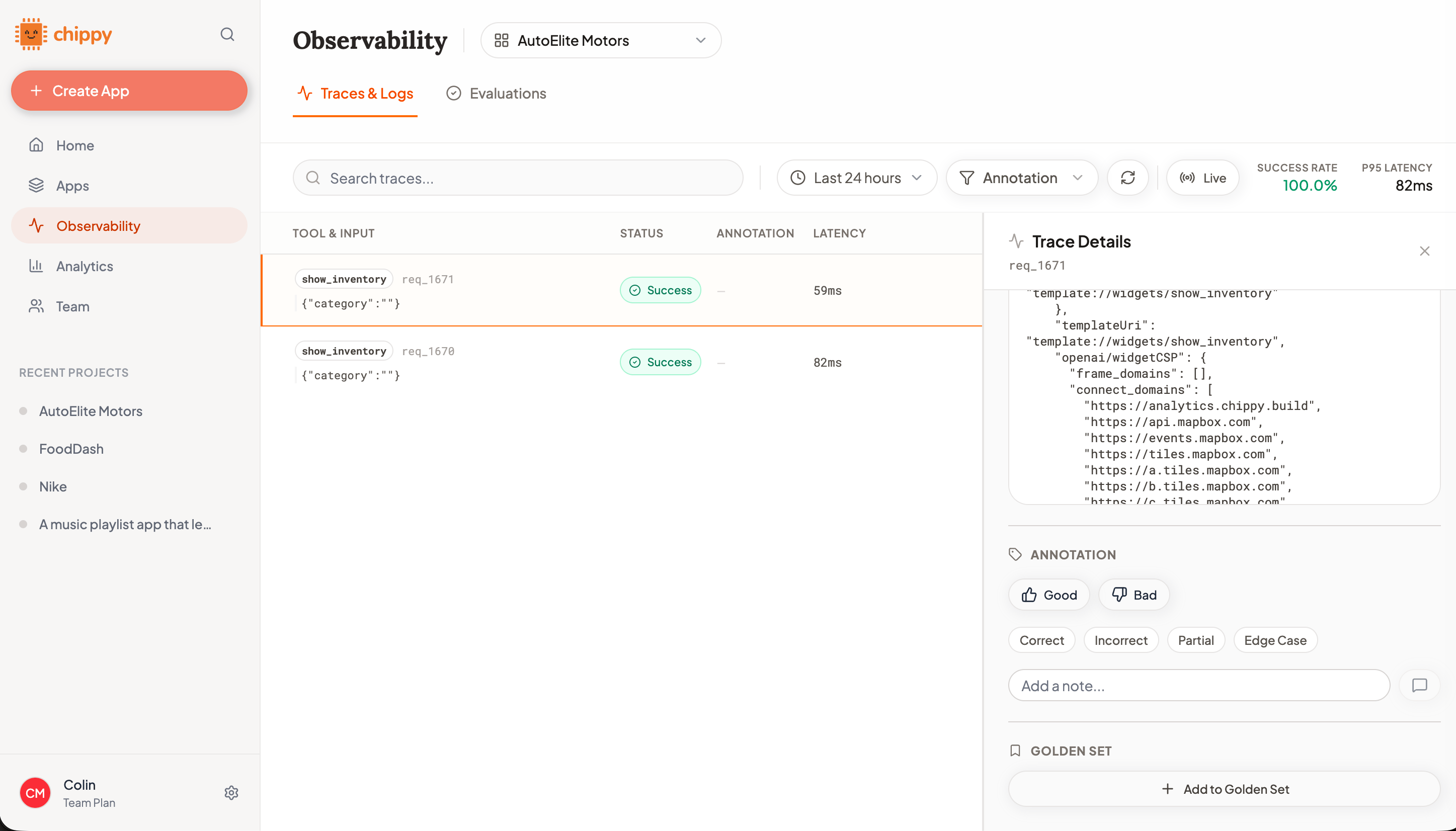
Creating an evaluation case from a trace
Evaluations require Solo plan or higher.
9. Export and Deploy
When your app is stable, export it for production handoff. Go to the Export page and download a ZIP package or push directly to GitHub.1
Create a version snapshot
Before exporting, save a version snapshot so you can roll back if needed.
2
Export to GitHub
Connect your GitHub account and push to a repository. Your team can review the code, open pull requests, and deploy from their existing workflow.
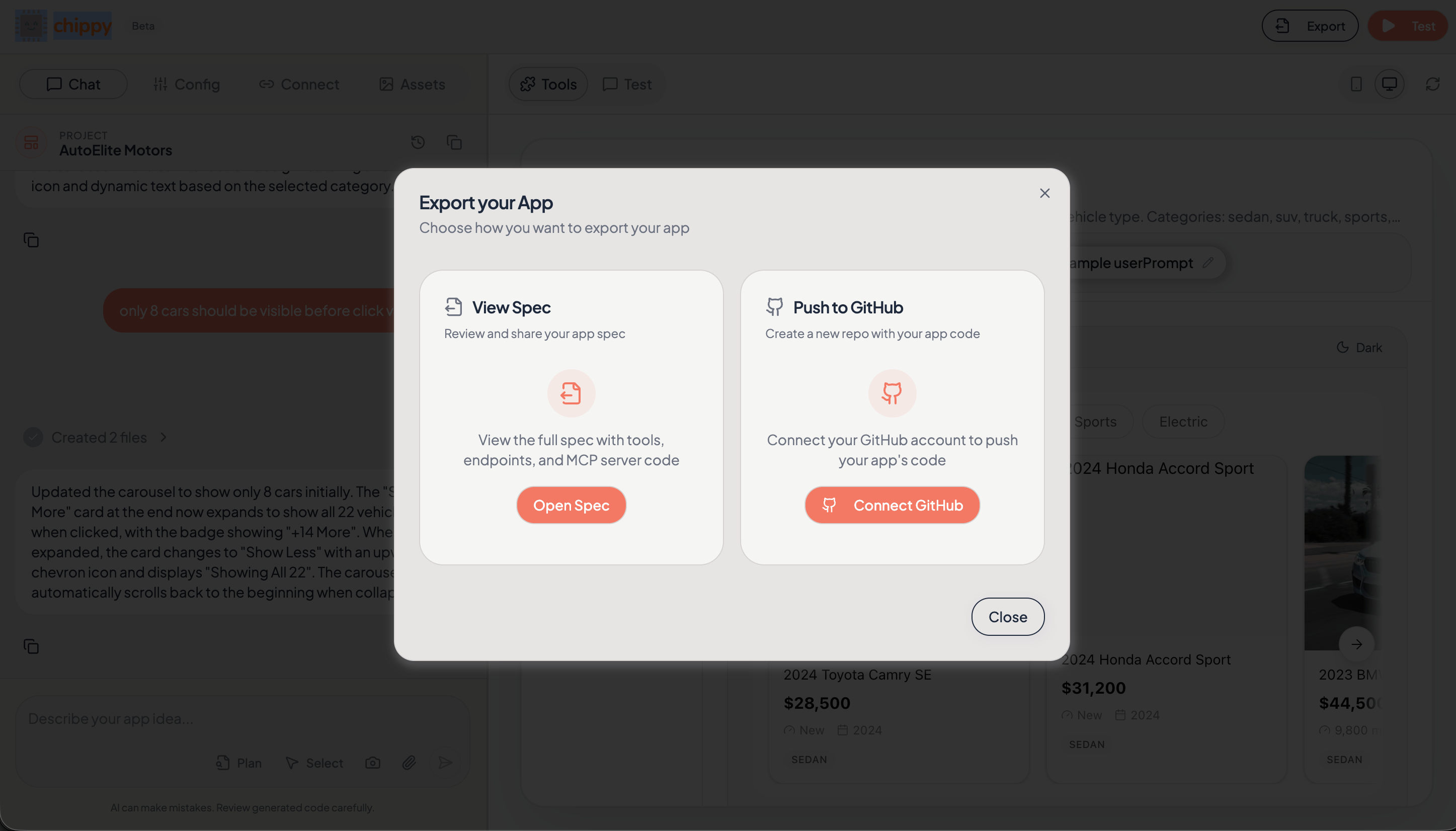
Exporting your app to GitHub
GitHub export requires Team plan or higher.
10. Monitor with Analytics
After launch, use the Analytics dashboard to track how your app is being used. See total requests, unique users, success rates, and session recordings to understand real usage patterns. Check analytics weekly to spot trends, catch failures early, and confirm that changes improve the experience.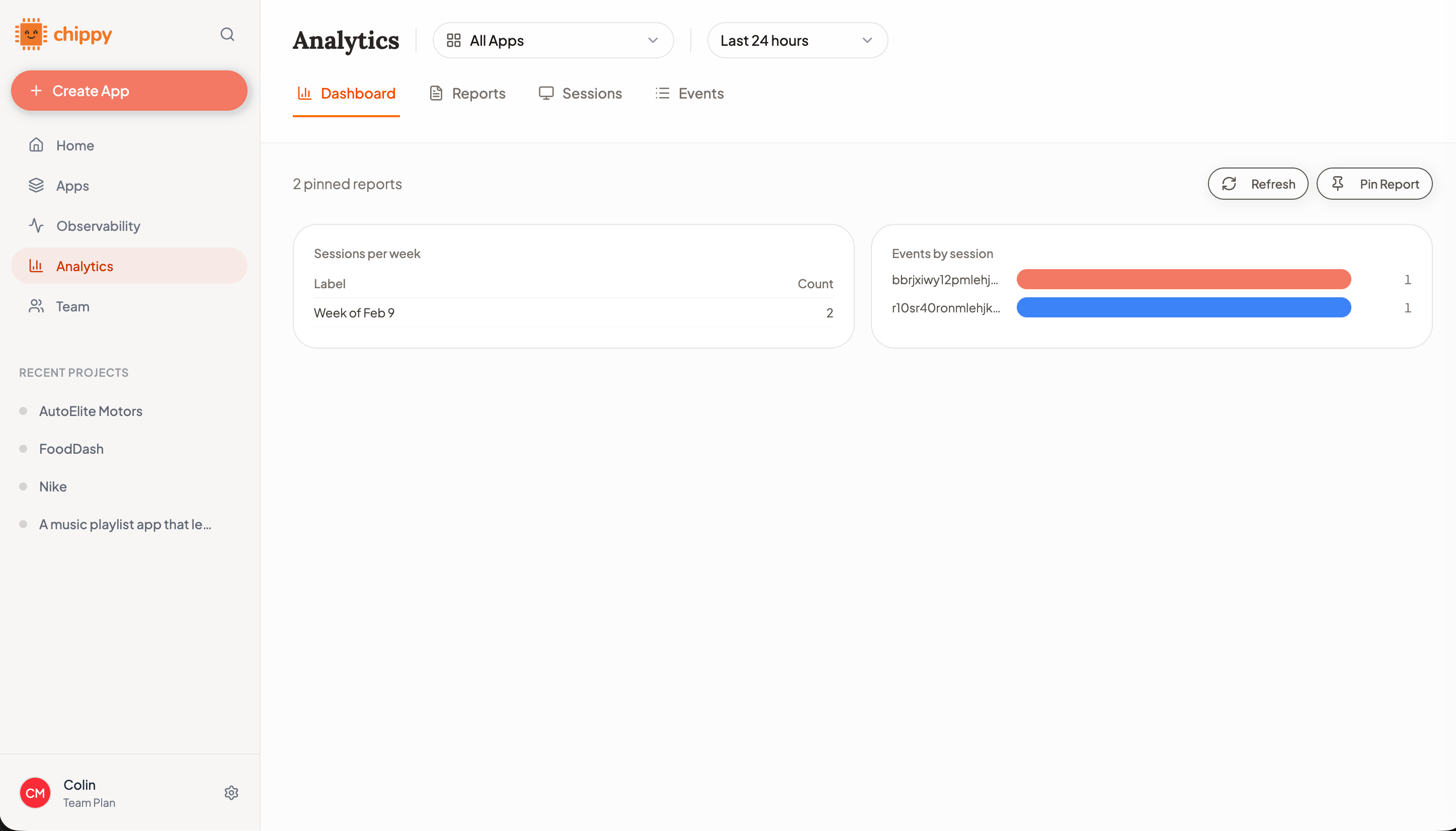
The analytics dashboard showing usage trends
Analytics requires Team plan or higher.
Common Issues
What’s Next
Builder Chat
Write better prompts and iterate faster.
Tools
Configure tools, parameters, and descriptions.
API Integrations
Replace mock data with live API connections.
Traces
Debug and monitor tool invocations.