
Analytics
Analytics requires Team or Enterprise.
Key Views
Dashboard
High-level health and trends. See total usage, active users, and success/failure rates at a glance.
Events
Detailed behavior data. Every tool call, API request, and user action is logged as an individual event.
Sessions
User journey context. See the full sequence of actions a user took in a single session.
Dashboard
The Dashboard view shows aggregate metrics over a selected time range. Use it to spot trends and check overall app health.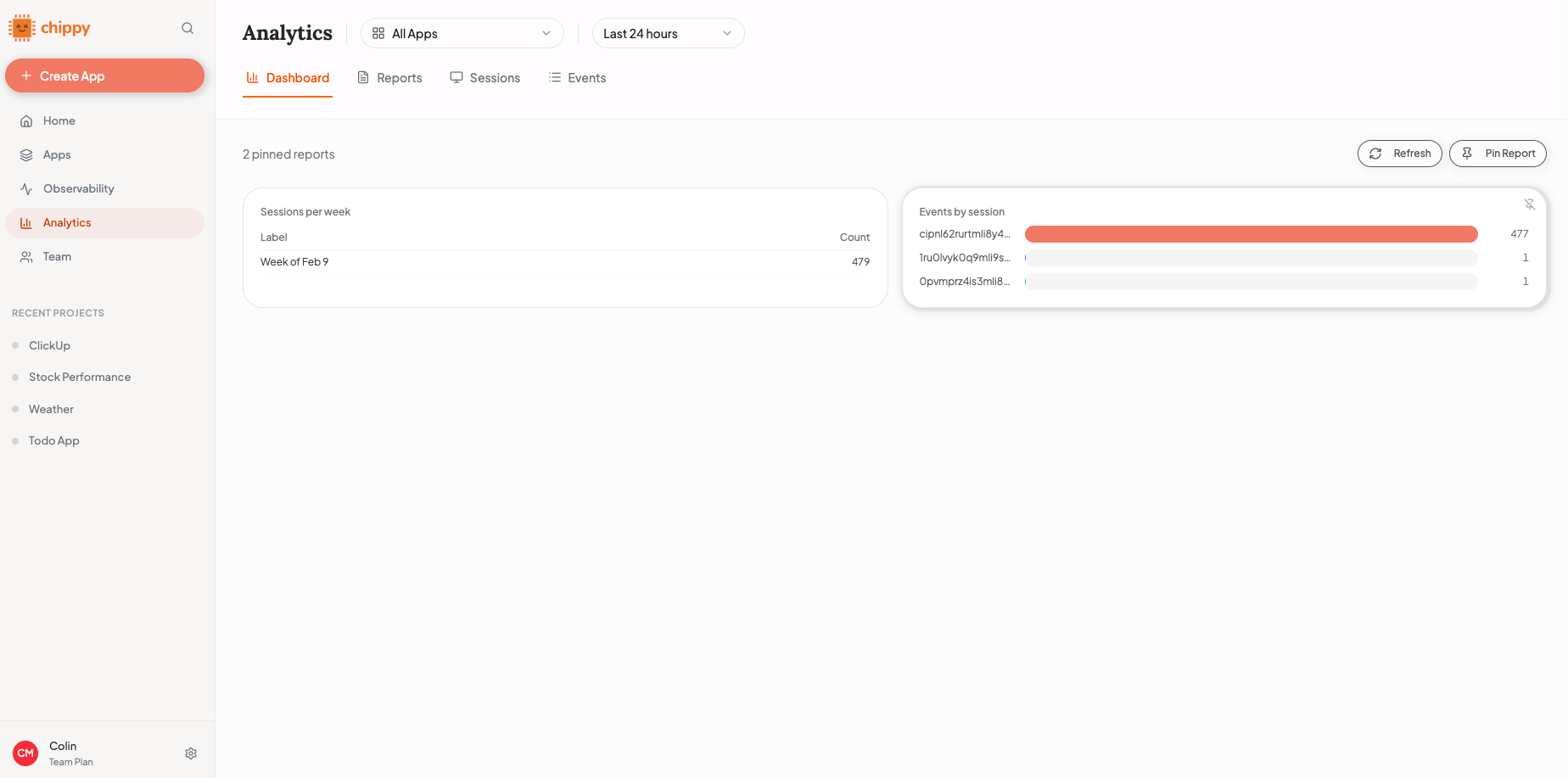
- Total requests: how many times your app was called
- Unique users: how many distinct users interacted with your app
- Success rate: percentage of requests that completed without errors
- Trend lines: daily or weekly graphs showing usage patterns over time
Events
The Events view shows individual actions. Each row is a single event with its type, timestamp, status, and latency.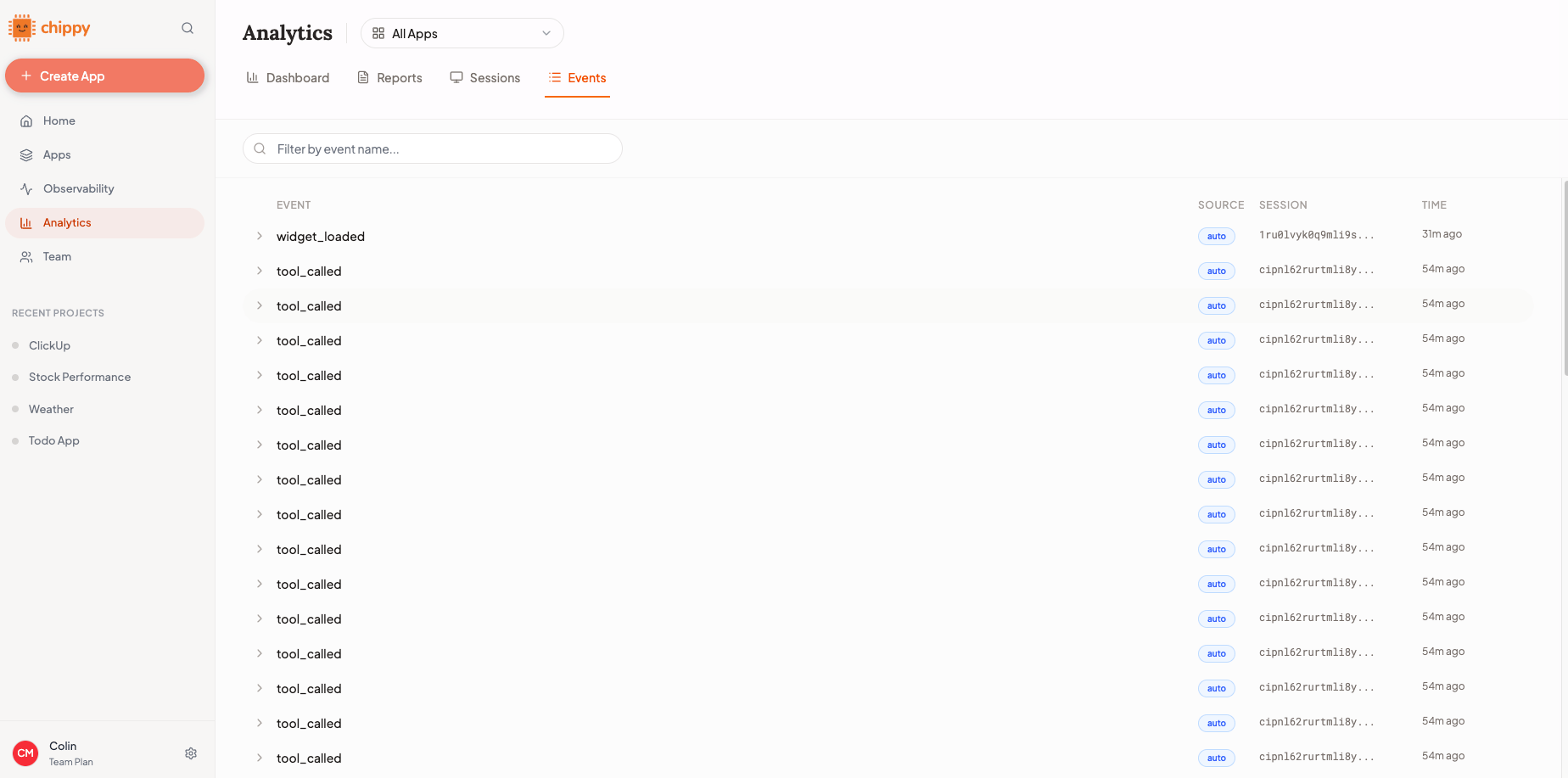
- Event type (tool call, API request, error)
- Status (success, failure)
- Time range
- Tool name
Sessions
The Sessions view groups events by user session. Click into a session to see every action the user took, in order.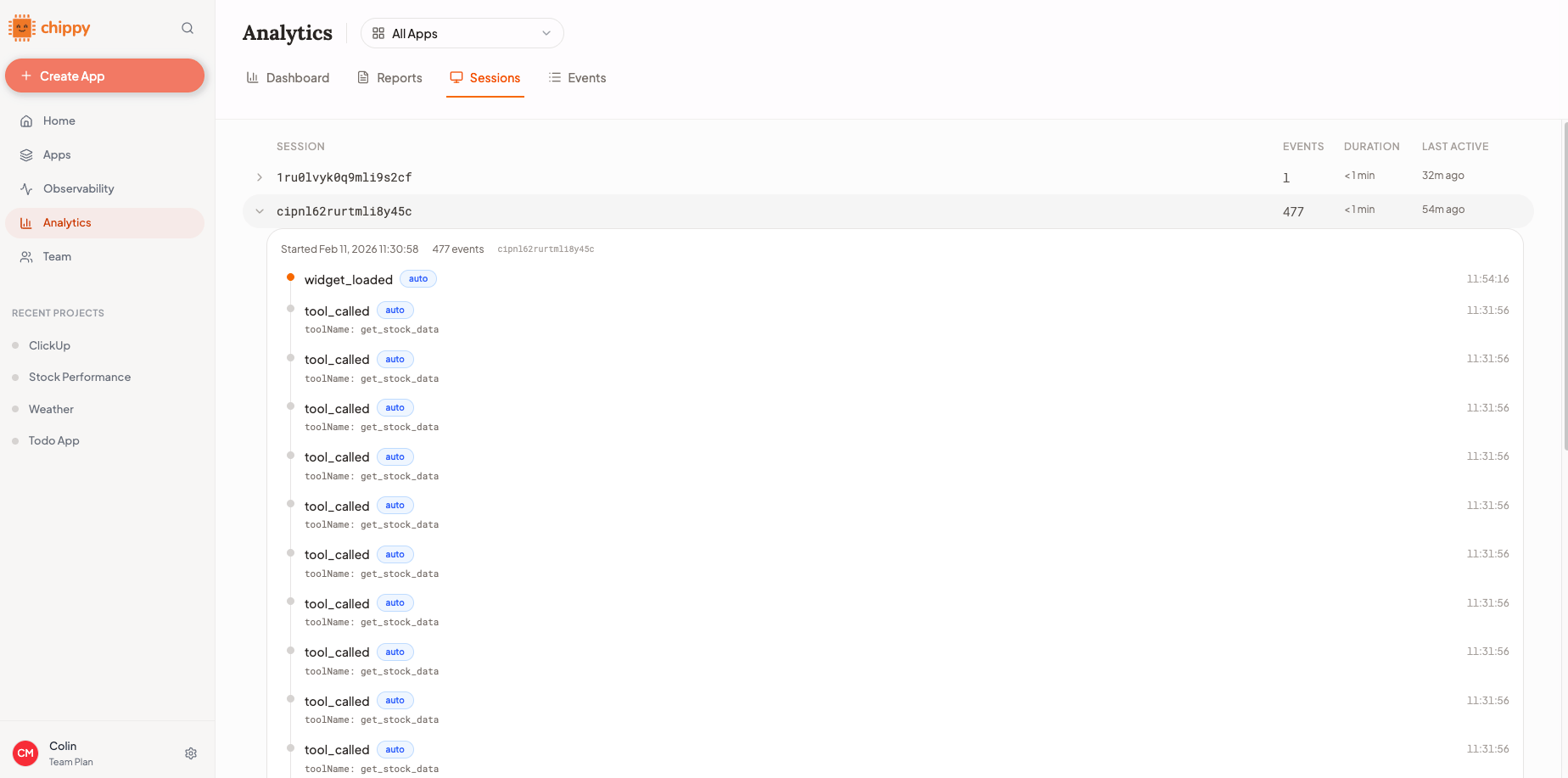
- Understand the full path a user takes through your app
- Identify where users drop off or hit errors
- Compare behavior before and after changes
What to Look For
Suggested Weekly Review
Run through this checklist once a week to stay on top of your app’s health:1
Check the Dashboard for trend shifts
Open the Dashboard and compare this week to last week. Look for significant changes in request volume, unique users, or success rate.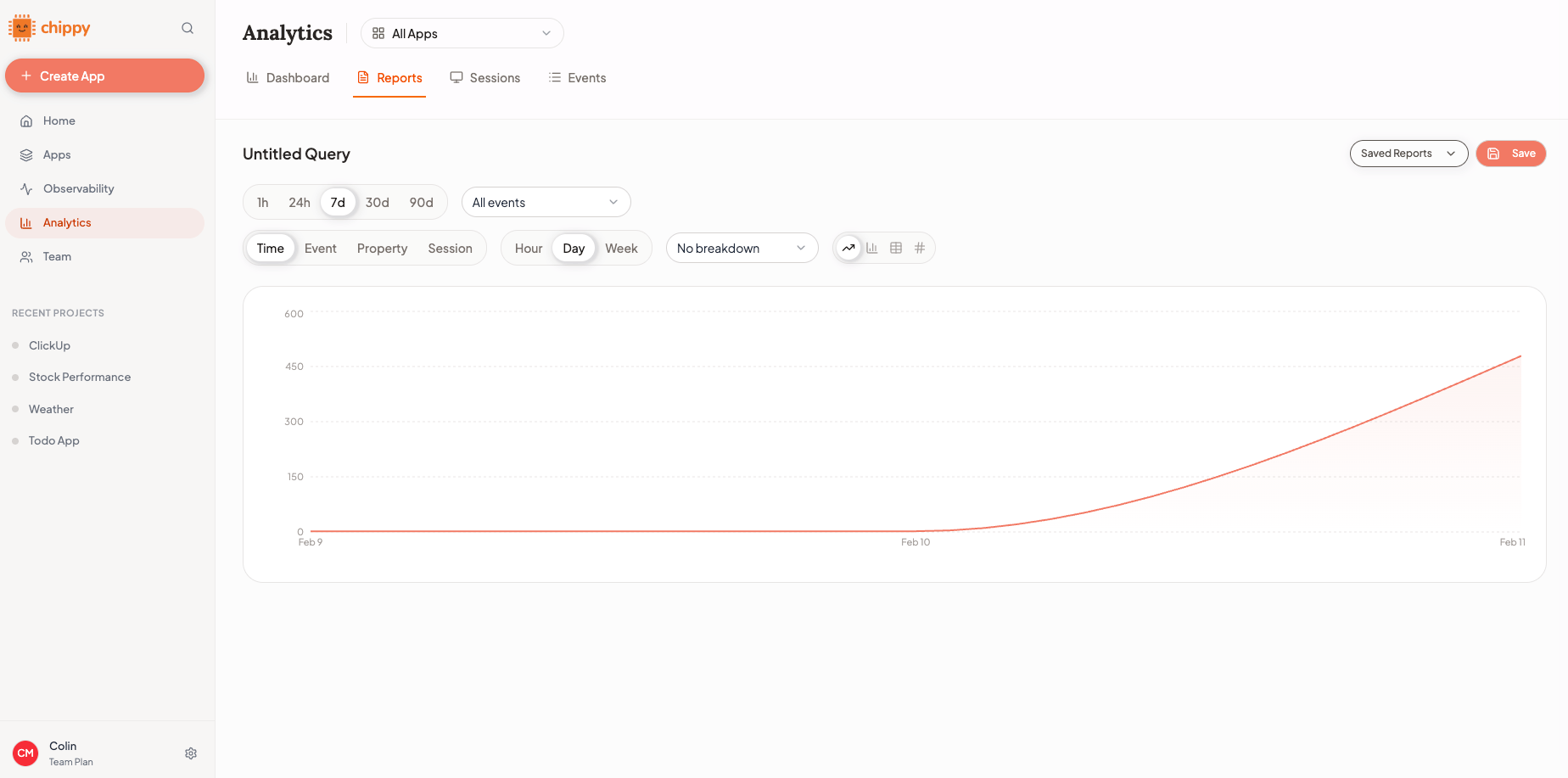
2
Inspect high-volume events
Switch to the Events view. Sort by count and review the top events. Investigate any events with elevated failure rates.
3
Compare sessions before and after changes
If you shipped changes this week, open the Sessions view and compare user journeys from before and after the change. Confirm that the change improved (or at least did not degrade) the user experience.