
How Your App Appears in Chat
When ChatGPT invokes one of your UI tools, the widget renders directly in the conversation. Users see and interact with your app without leaving the chat window.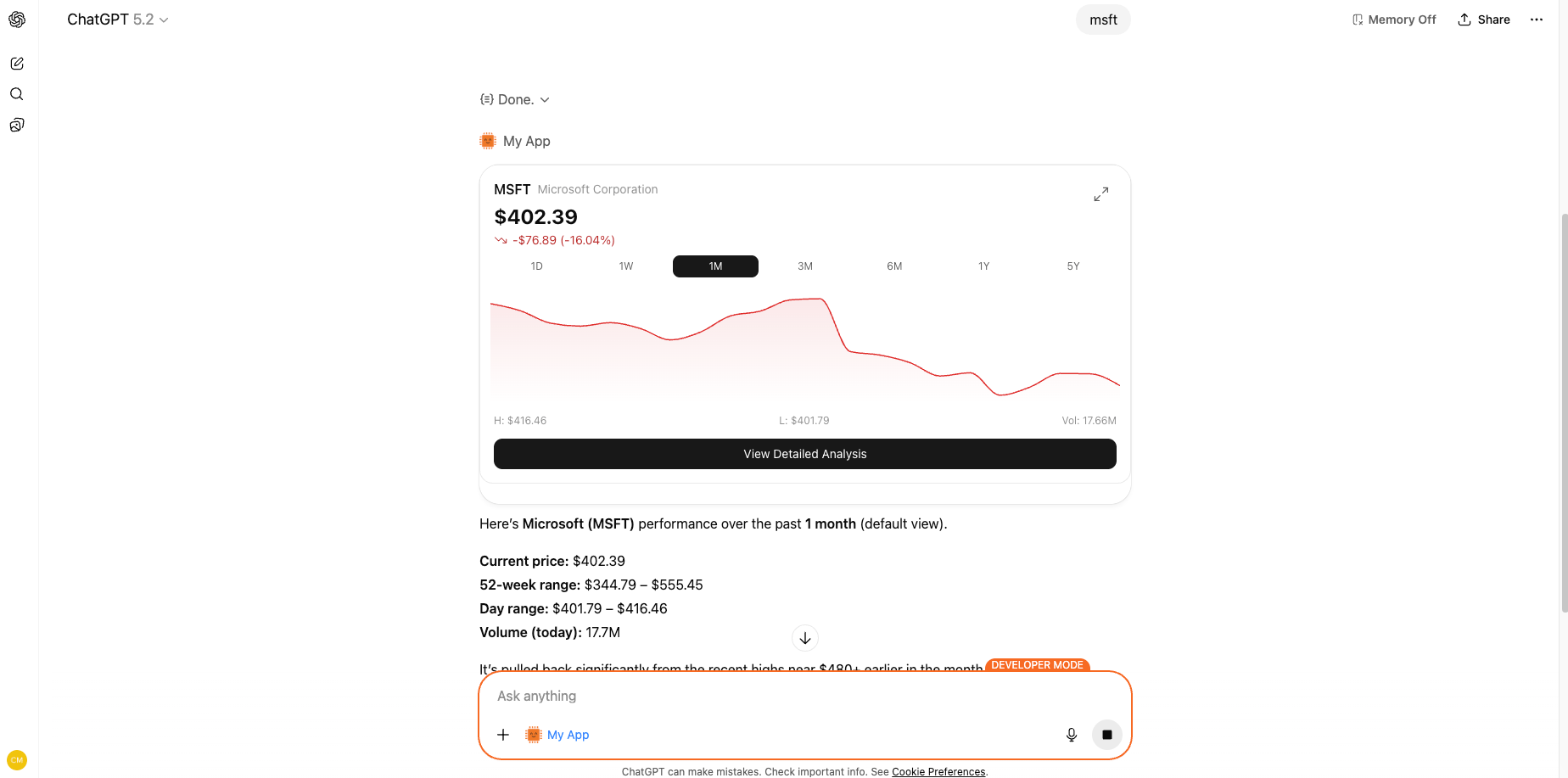
A Chippy widget rendered inside a ChatGPT conversation
Display Modes
Every UI tool has a display mode that controls how the widget appears. You set this in the builder when you create or edit a tool.Inline
The widget appears as a message in the conversation, occupying the same width as a regular chat bubble. Best for: quick results, small cards, confirmation messages, short lists.Fullscreen
The widget takes over the ChatGPT view, giving your app the full viewport. Users can dismiss it to return to the conversation. Best for: dashboards, data tables, multi-step forms, detailed visualizations.PiP (Picture-in-Picture)
The widget floats as a persistent, movable window over the conversation. Users can keep chatting while your widget stays visible. Best for: live status panels, media players, reference cards the user needs to keep visible.Choosing the Right Mode
You set the display mode per tool in the builder under Tool Settings > Display Mode. You can change it anytime. The preview panel updates immediately.
Designing for Chat
Widgets that work well inside ChatGPT follow a few practical patterns.Keep the First Render Fast and Focused
Users expect the widget to appear quickly after ChatGPT invokes the tool. Show the most important content immediately. Load secondary details on interaction (tap, scroll, expand). Do: Show a summary table with the top 5 results on first render. Don’t: Load all 500 results before showing anything.Use Clear Loading and Empty States
If your widget fetches data or waits on a process, show a loading indicator. If there’s no data to display, show an empty state with a clear message, not a blank box. Do: “No tickets found matching your filters. Try broadening your search.” Don’t: (empty white rectangle)Make Important Actions Visible Without Scrolling
Buttons for primary actions (submit, approve, assign) should be visible in the initial viewport. Users shouldn’t have to scroll to find the main thing they need to do.Design for Light and Dark Mode
ChatGPT users can be in either light or dark mode. Your widget inherits the theme context. Avoid hardcoded background colors and test in both modes using the preview panel.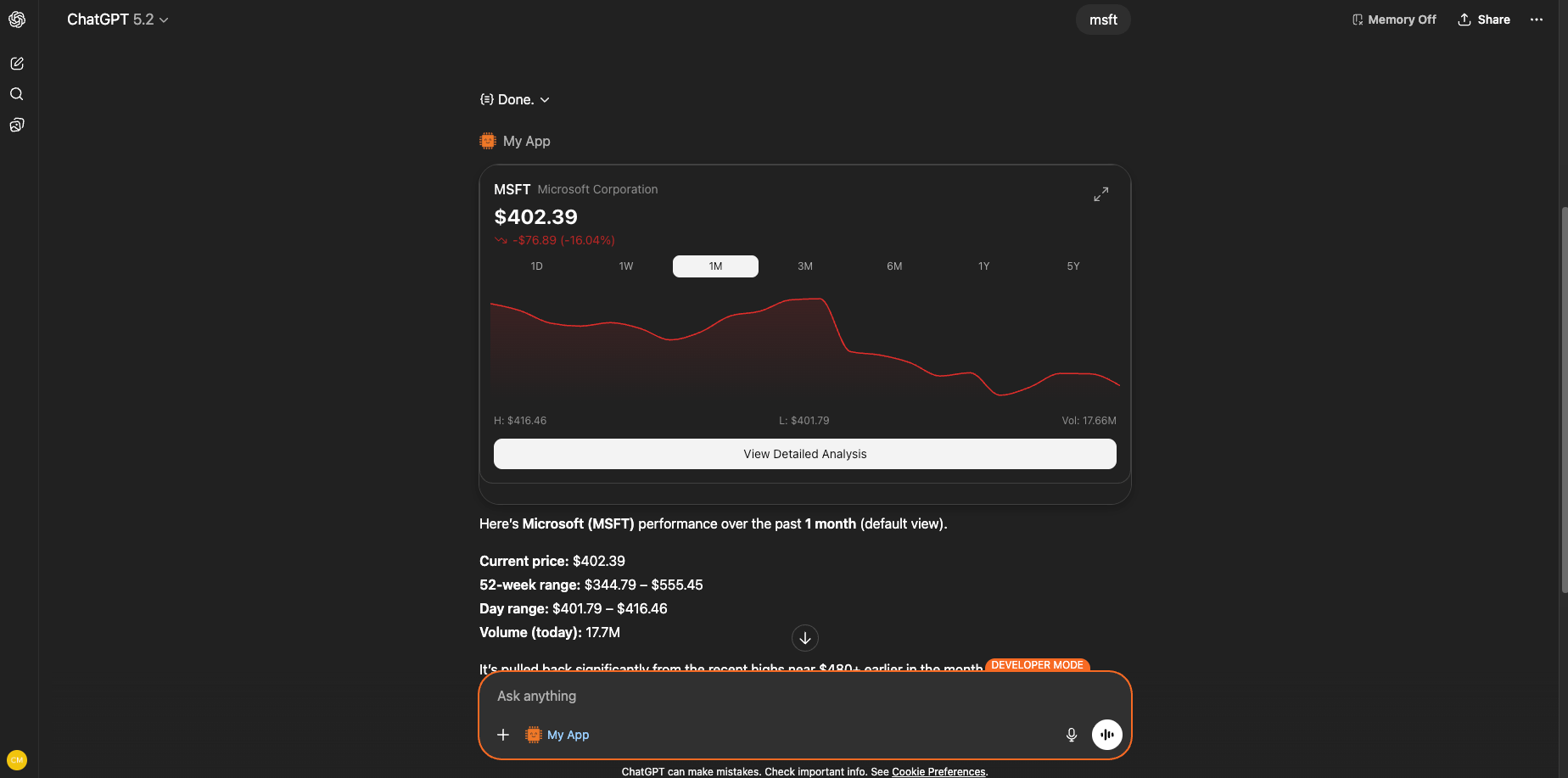
The same widget in light mode (left) and dark mode (right)
Keep Text Readable at Chat Scale
Chat bubbles are narrower than a full browser window. Use concise labels, abbreviate where appropriate, and avoid wide tables in inline mode. If you need more room, use fullscreen.Troubleshooting
What’s Next
Tools
Configure tool settings including display mode and descriptions.
Styling
Customize the look and feel of your widgets.