
Styling & Theming
Chippy widgets automatically match ChatGPT’s look and feel, including dark mode. You do not write CSS. You describe the style you want in the builder chat, and the AI applies it using a built-in design system of semantic colors, typography scales, and 1500+ icons.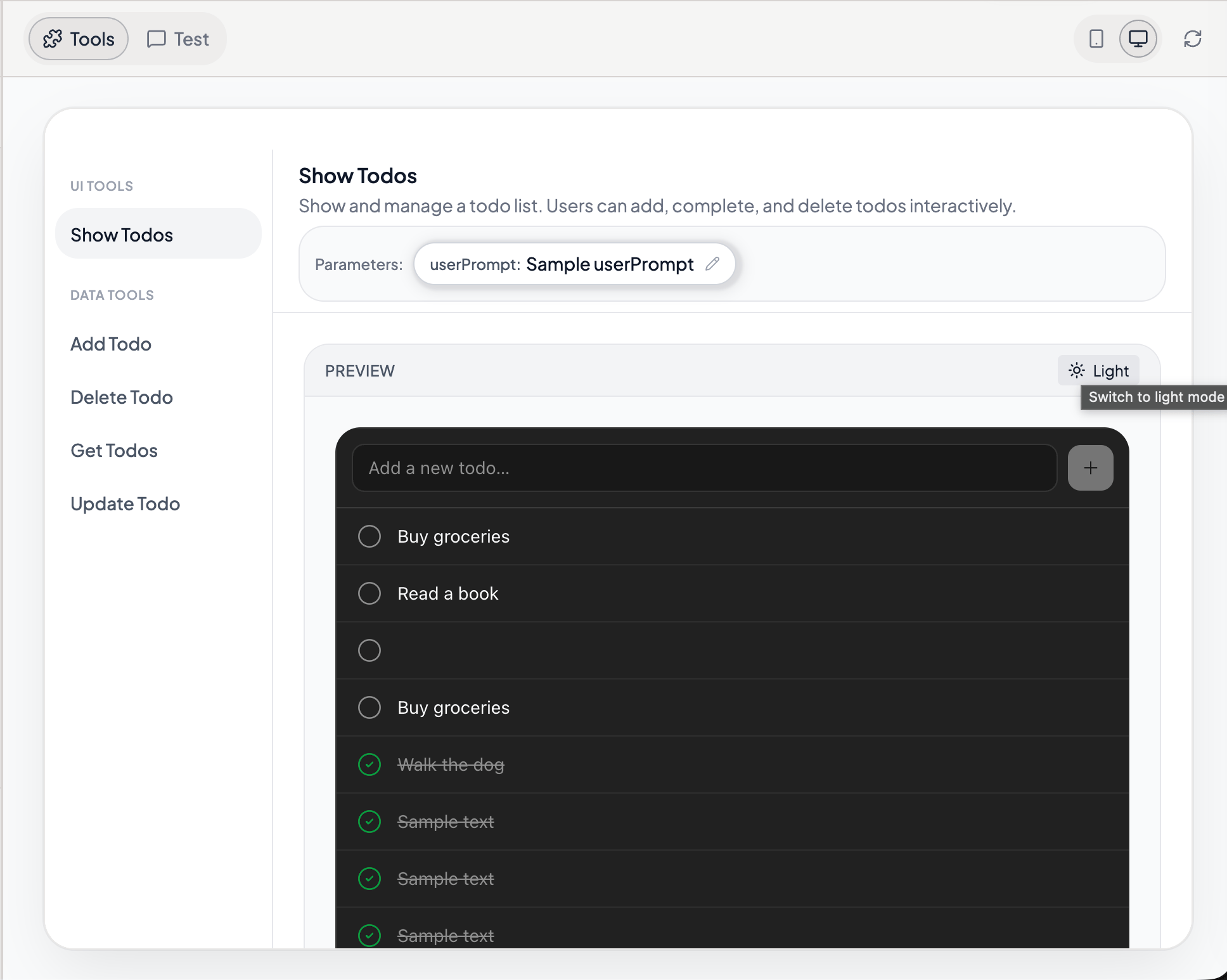
A widget rendered in light mode and dark mode side by side
How to Describe Styles
In the builder chat, tell the AI what you want the widget to look like. The more specific you are, the better the result. Vague prompt (unpredictable results):Make it look nice.Specific prompt (reliable results):
Style the order card with a white background, 8px rounded corners, and a 1px light gray border. Use the primary color for the order total. Show the status as a small badge in the top-right corner: green for delivered, yellow for in transit, red for cancelled.Here are more example prompts for common patterns:
Cards and containers
Give each product a card layout with the product image on the left, name and price on the right, and a subtle shadow on hover.
Status badges
Show the ticket priority as a pill-shaped badge. Use semantic colors: success green for low, warning yellow for medium, error red for high.
Data tables
Style the table with alternating row backgrounds, bold column headers, and right-align the numeric columns.
Interactive elements
Make the “Add to Cart” button use the primary color with white text. On hover, darken the background slightly. Show a disabled state with reduced opacity when the item is out of stock.
Dashboard layouts
Arrange the metrics in a 2x2 grid of cards. Each card should have a large number, a label below it, and an icon in the top-right corner. Use the success color for positive trends and the error color for negative ones.
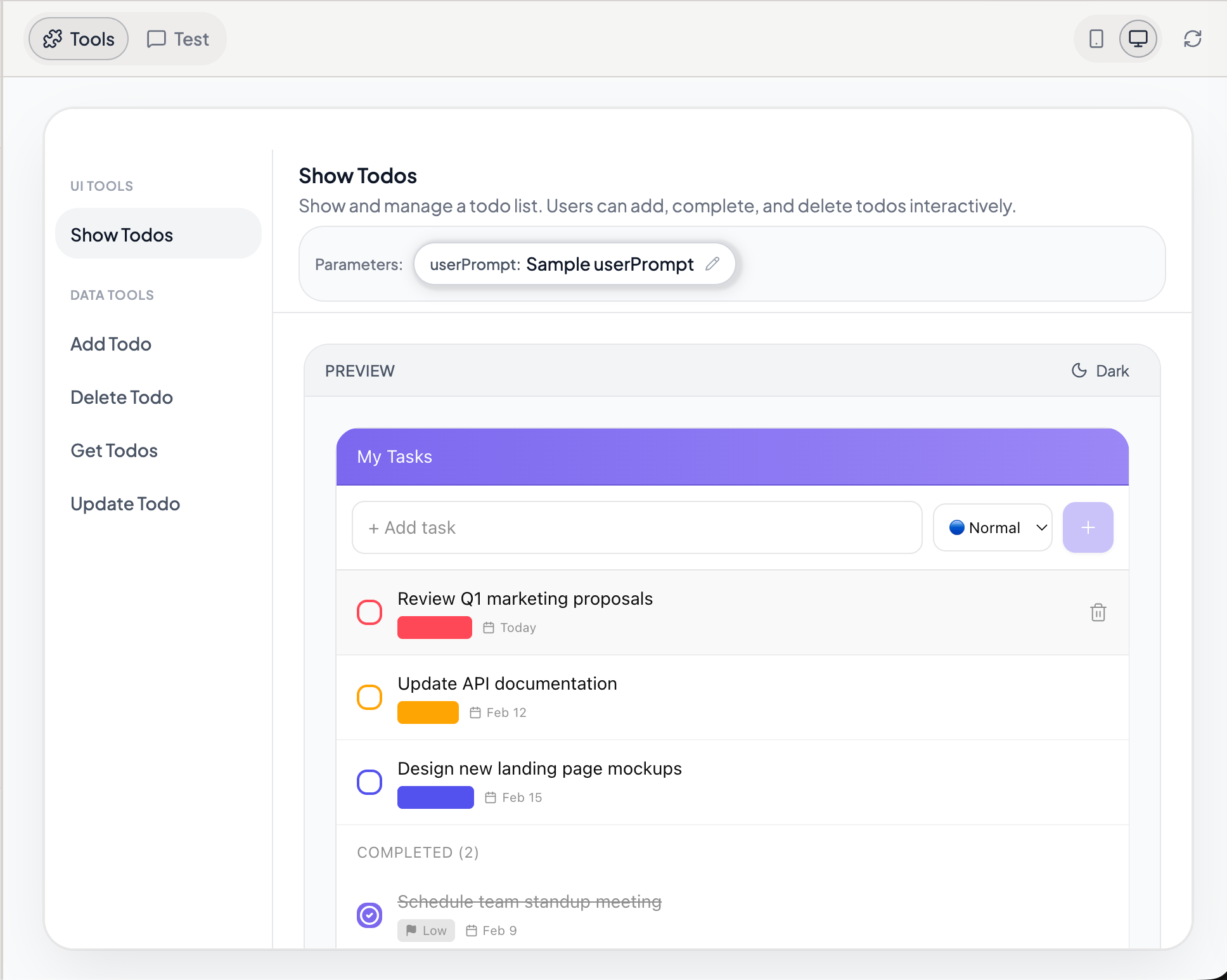
A styled dashboard widget built from a descriptive prompt
Built-in Design Elements
Semantic Colors
Chippy provides semantic color tokens that automatically adapt to light and dark mode. Use these names in your prompts instead of specific hex values:Semantic colors work correctly in both light and dark mode. If you hardcode a hex value like
#FFFFFF for a background, it will look wrong in dark mode. Stick to semantic color names and let the design system handle the rest.Typography
The type system follows a consistent scale. You do not need to specify font sizes; just describe the role of the text:Icons
Over 1500 icons are built in. Describe what you need and the AI picks the right one:Add a gear icon next to the settings label.
Show a green checkmark icon when the task is complete.
Use a warning triangle icon next to overdue items.
Put a magnifying glass icon inside the search field.
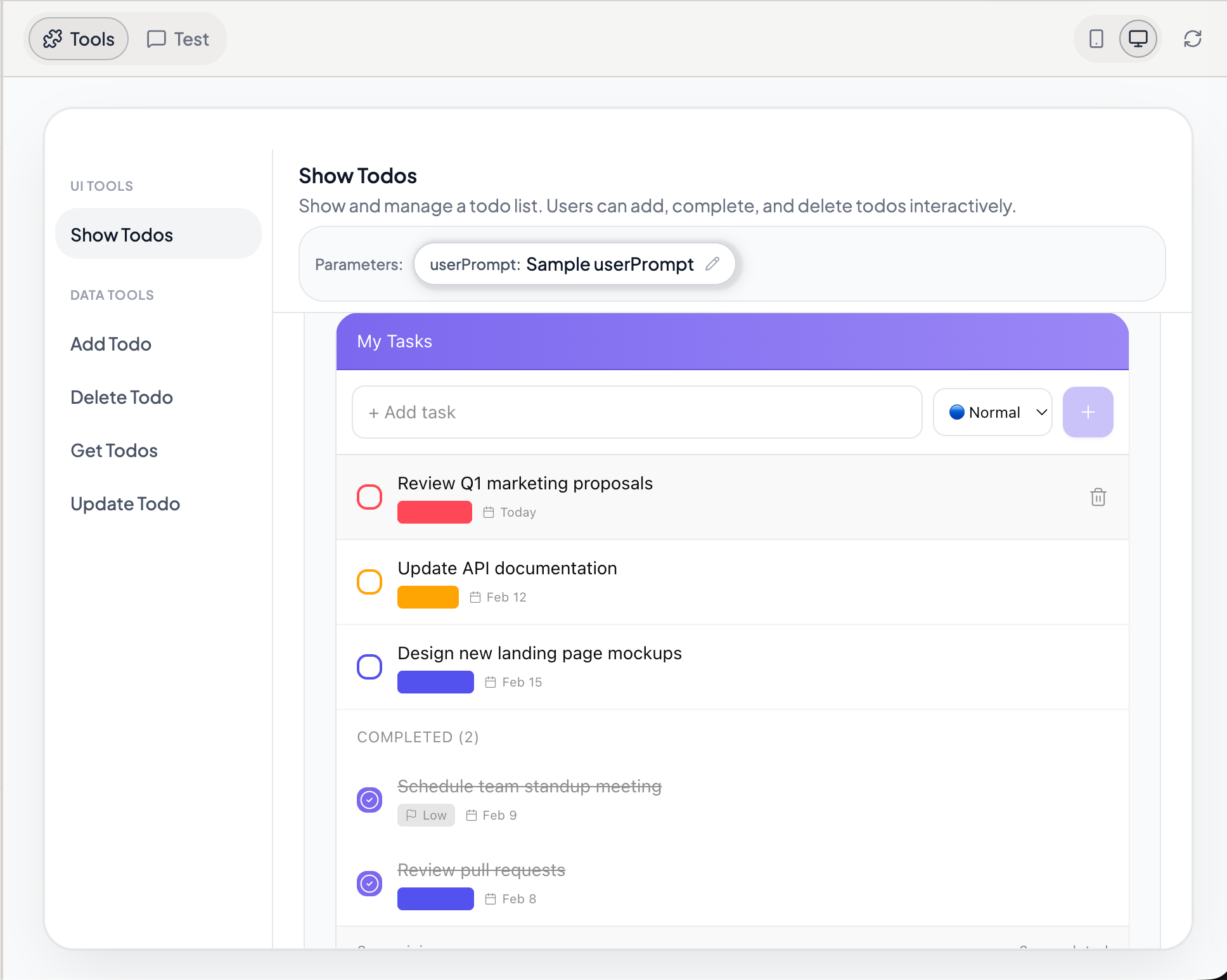
Example icons used in a widget
Dark Mode
Dark mode is automatic. When a user switches ChatGPT to dark mode, your widgets adapt without any extra work. This happens because the design system uses semantic color tokens that resolve differently in each theme. There is nothing you need to do to enable dark mode. It works out of the box. The only time you might need to think about dark mode is if you hardcode specific colors in a prompt. For example, “use a white background” will look wrong in dark mode. Instead, say “use the default background color” and the system handles both themes.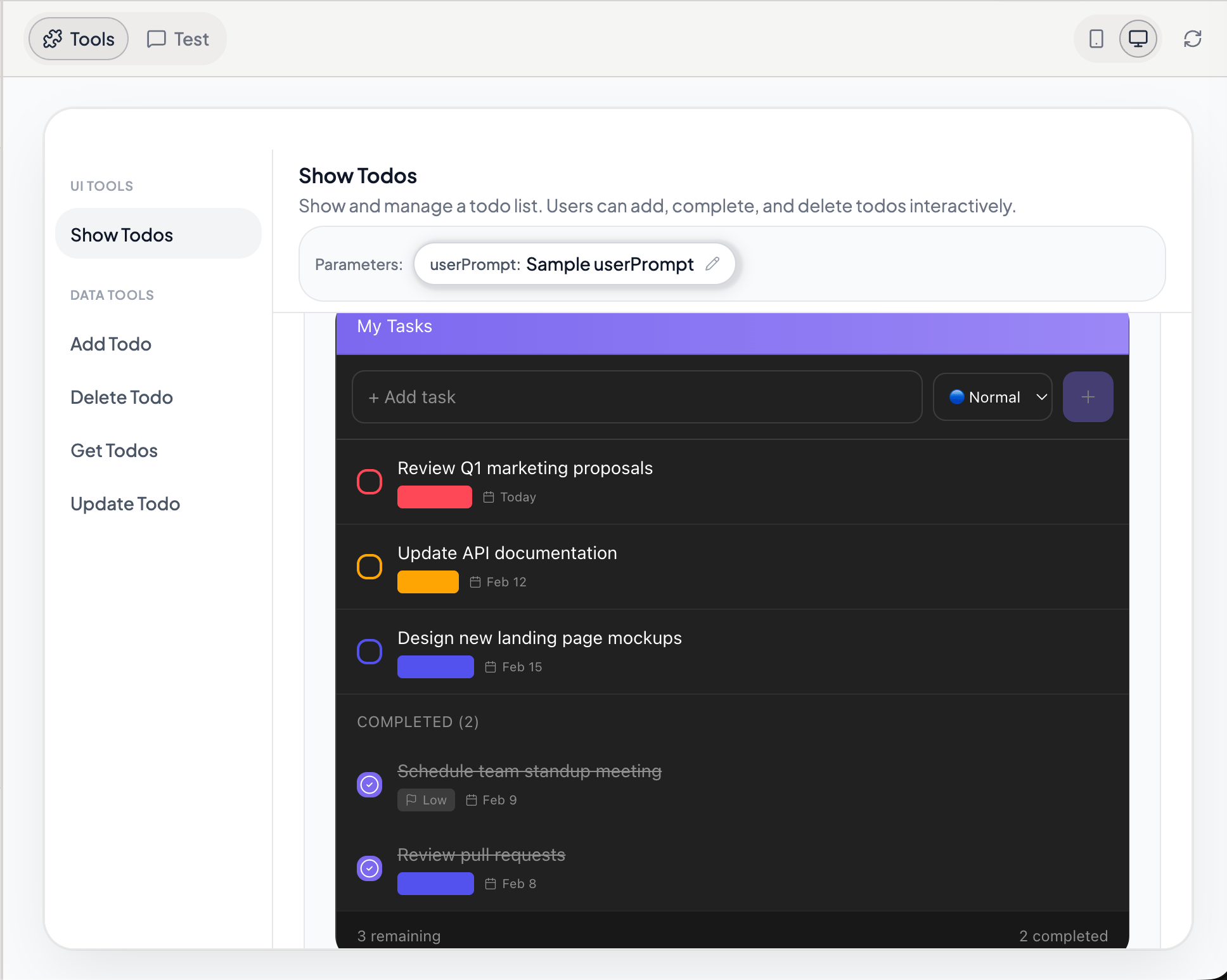
Automatic dark mode adaptation, no extra configuration
Best Practices
Be specific about what you want
“Blue primary button with white text and 8px rounded corners” gives the AI a clear target. “Make it look modern” does not.
Reference existing elements
“Style this card the same way as the order summary card” keeps your app visually consistent across tools.
Think about all states
Mention hover, active, disabled, loading, empty, and error states. The AI can generate them all if you ask.
Use semantic colors, not hex values
Semantic colors (primary, success, error) work in both light and dark mode. Hardcoded hex values will break in one theme or the other.
UI Tools
Learn how UI tools render widgets inside ChatGPT.
Images & Assets
Add logos, illustrations, and AI-generated images to your widgets.